How to Add My Badge Studio as an App on iPhone & Android
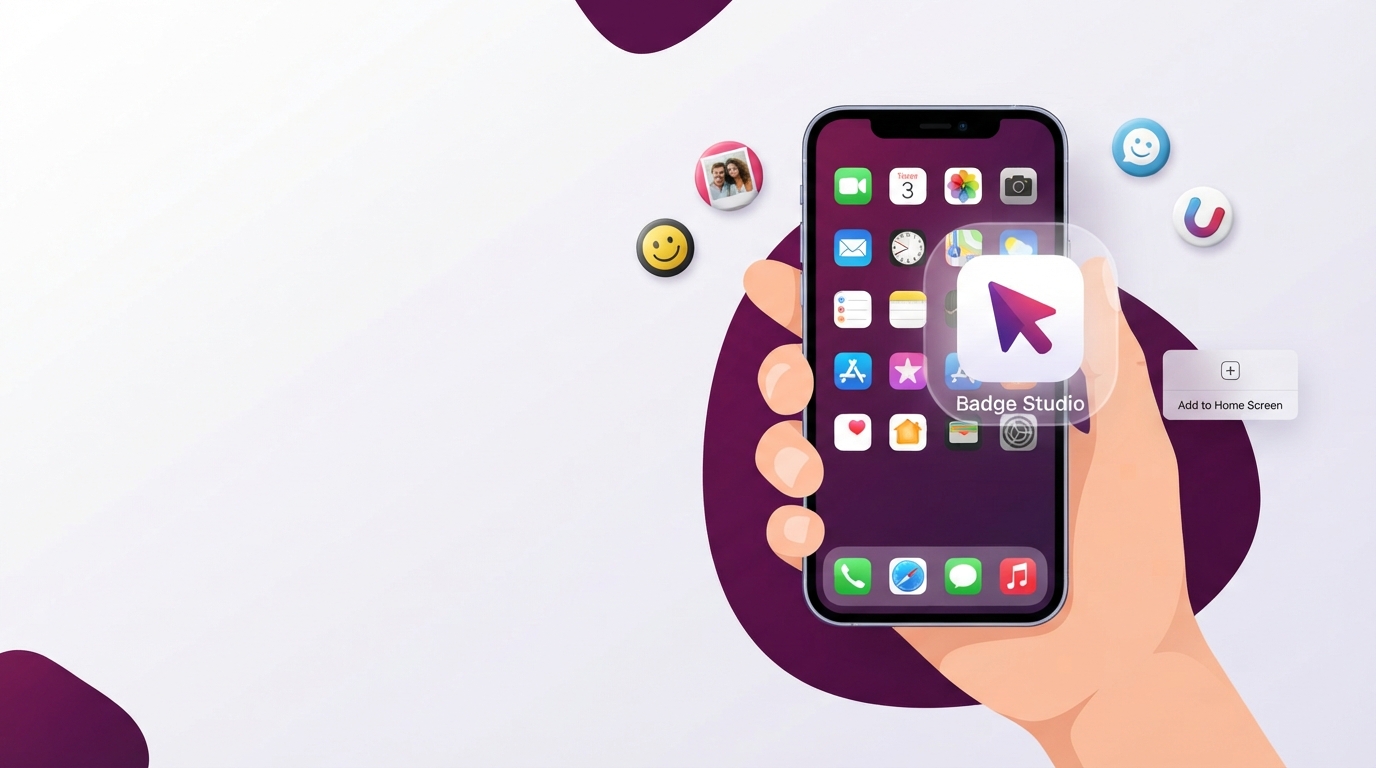
You don't need the App Store or Google Play to keep My Badge Studio one tap away. Because it's a modern web app (a "PWA"), you can add it straight to your home screen and it opens full-screen — its own icon, no browser bars — just like an installed app. It takes about 30 seconds and works on iPhone, iPad, Android and desktop. Here's exactly how for each.
What you get when you install it
- A home-screen icon — the My Badge Studio logo, tap to launch.
- Full-screen, app-like view — no address bar or browser buttons, so you get more room for the editor.
- One-tap access — no typing the address or hunting through browser tabs.
- Always up to date — because it loads the live site, you always have the newest version, with nothing to update.
Good to know: My Badge Studio needs an internet connection to work — your account, plan, saved designs and downloads all live online. Installing it puts the app on your home screen for instant access; it does not make the tool work offline. If you lose signal, it'll ask you to reconnect, exactly like the website.
iPhone & iPad (Safari)
On iOS you install from Safari (Chrome and other browsers on iPhone can't add to the home screen — it's an Apple restriction, so use Safari for this step).
- Open mybadgestudio.com in Safari.
- Tap the Share button — the square with an arrow pointing up — in the toolbar (bottom on iPhone, top on iPad).
- Scroll down the share sheet and tap Add to Home Screen.
- You'll see the app name (Badge Studio) and icon. Tap Add in the top-right.
- The icon appears on your home screen. Tap it — it opens full-screen, no Safari bars.
Android (Chrome)
On most Android phones Chrome will even offer this for you with an "Install app" prompt. If you don't see it, add it manually:
- Open mybadgestudio.com in Chrome.
- Tap the ⋮ menu (three dots) in the top-right.
- Tap Install app (on some phones it's Add to Home screen).
- Confirm by tapping Install / Add.
- The icon lands on your home screen and in your app drawer. Tap it to launch full-screen.
Using Samsung Internet or Firefox? Look for Add page to → Home screen (Samsung Internet) or Menu → Install (Firefox) — the idea is the same.
Desktop (Chrome or Edge on Windows / Mac)
You can install it on a computer too, so it runs in its own window and pins to your taskbar or Dock:
- Open mybadgestudio.com in Chrome or Edge.
- Look for the install icon at the right end of the address bar (a small monitor/screen with a down-arrow), or open the ⋮ menu and choose Install My Badge Studio… / Apps → Install this site as an app.
- Click Install. It opens in its own clean window — pin it to your taskbar (Windows) or Dock (Mac) to keep it handy.
How to remove it
It uninstalls like any app — no account changes, and your designs (saved to your account) are untouched:
- iPhone/iPad: press and hold the icon → Remove App → Delete from Home Screen.
- Android: press and hold the icon → Uninstall / drag to Remove.
- Desktop: open the app, click its ⋮ menu → Uninstall.
Troubleshooting
| Problem | Fix |
|---|---|
| No "Add to Home Screen" on iPhone | You're not in Safari. iOS only allows this from Safari — open the site there and try the Share button again. |
| No "Install app" on Android | Use Chrome's ⋮ menu → Add to Home screen. Also make sure Chrome is up to date. |
| It opens in a browser, not full-screen | Launch it from the home-screen icon, not a bookmark or a browser tab. |
| "No internet" when I open it | Expected — the tool works online. Reconnect and it loads normally. |
The bottom line
Adding My Badge Studio to your home screen gives you a clean, full-screen, one-tap way into the editor on any device — without an app store or a download. Set it up once and it's always there when an order comes in. Ready to design? Open the studio or browse the free templates.
Frequently Asked Questions
Is there a My Badge Studio app in the App Store or Google Play?
There's no separate store download — and you don't need one. My Badge Studio is a web app you can install straight to your home screen from your browser, so it gets its own icon and opens full-screen like an app, while always staying up to date.
How do I add My Badge Studio to my iPhone home screen?
Open mybadgestudio.com in Safari, tap the Share button, then tap 'Add to Home Screen' and tap Add. On iPhone this only works in Safari, not Chrome.
How do I install it on Android?
Open mybadgestudio.com in Chrome, then either tap the 'Install app' prompt if it appears, or open the ⋮ menu and choose 'Install app' / 'Add to Home screen', then confirm.
Does the app work offline?
No. My Badge Studio needs an internet connection because your account, plan, saved designs and downloads all live online. Installing it gives you instant, full-screen access from your home screen — it isn't an offline copy of the tool.
Can I install it on my computer too?
Yes. In Chrome or Edge, click the install icon at the right of the address bar (or the ⋮ menu → Install), and it runs in its own window that you can pin to your taskbar or Dock.