How to Add a QR Code to a Badge (and Why Your Business Should)
A badge with a QR code isn't just decoration — it's a scannable link pinned to a shirt or stuck on a fridge. Customers scan it with their phone camera and land on your menu, WhatsApp chat, Instagram, website or contact card. My Badge Studio generates the QR code for you, right inside the badge editor.
What businesses do with QR badges
- Cafés & restaurants — staff badges and table magnets that open the menu or ordering page.
- Shops & stalls — "Scan to chat" badges that start a WhatsApp conversation instantly.
- Events — attendee badges linking to the schedule, feedback form or event group.
- Staff name badges — a vCard QR so a scan saves the person's contact details.
- Creators — pins and magnets that open your Instagram, YouTube or portfolio.
- Fridge-magnet marketing — a magnet on a customer's fridge with your re-order link is advertising that never gets thrown away.
How to add a QR code (step by step)
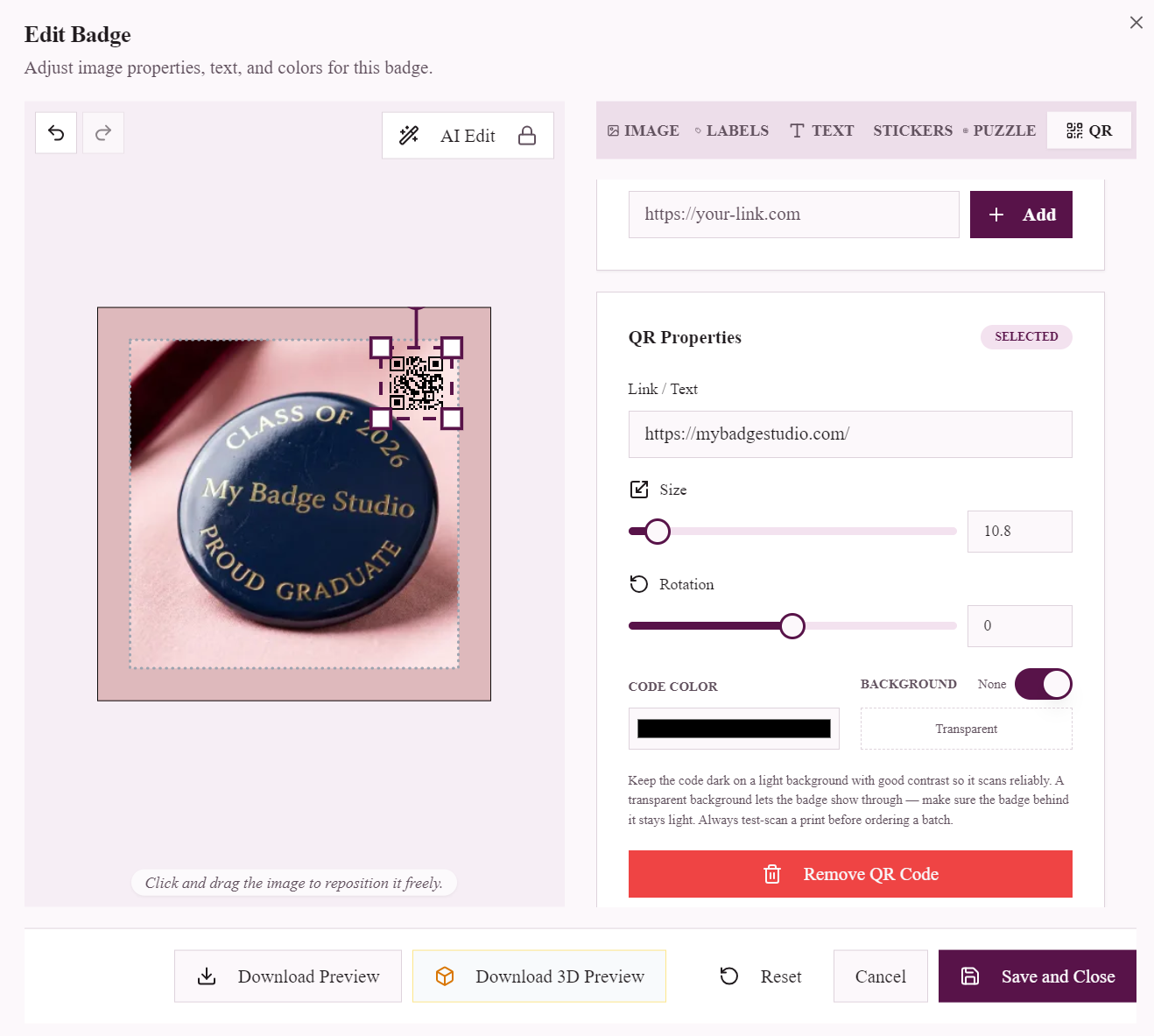
- Open your badge. In the Template Studio, hover your badge and click ✏️ Edit.
- Go to the QR tab.
- Paste your link — a URL, WhatsApp link (wa.me/yournumber), social profile, or any text — and tap Add.
- Position and size it. Drag the code on the preview; use the size slider. Bigger scans more reliably — aim for at least a third of the badge face.
- Style it. Set the code colour and background — or make the background transparent so the badge shows through. Keep the code dark on a light area for reliable scanning.
Always test-scan a printed sample before pressing a full batch. Phone cameras are forgiving, but high contrast and a clean quiet zone around the code make every scan instant.
Design tips for scannable badges
- Contrast is king. Dark code, light background. Avoid placing the code over a busy photo.
- Size for the badge. On a 58mm badge, a 20mm+ code scans easily; on smaller pins, let the QR be the main element.
- Pair it with a prompt. A small curved text line like "SCAN ME" above or below the code doubles scan rates.
- Short links scan faster. Shorter URLs produce simpler codes that scan at smaller sizes.
Which plans include QR codes?
QR codes are a Business Plus and Business Pro feature. Everyone can open the QR tab and see how it works; adding codes to your badges unlocks with those plans — see pricing. Both plans also include Mail Merge, the Event/Client portal and Shopify/WordPress integration, so QR badges slot straight into a badge-selling business.
Ready to make your badges scannable? Open the studio, hit the QR tab and paste your link.
Frequently Asked Questions
How do I put a QR code on a button badge?
Open your badge in the My Badge Studio editor, go to the QR tab, paste your link (website, WhatsApp, social profile or any text) and tap Add. The QR code is generated instantly — drag to position it, resize it, and recolour it to match your design.
What can the QR code link to?
Anything: a website, an online menu, a WhatsApp chat link (wa.me), Instagram or YouTube, a Google review page, an event form, or a vCard so scanning saves your contact details. If it's a link or text, it works.
Which plan do I need for QR codes?
QR codes are included in the Business Plus and Business Pro plans. Every account can open the QR tab to preview the feature; adding codes to badges unlocks with those plans.
Will the QR code scan reliably after printing?
Yes, if you keep it high-contrast (dark code on a light background), reasonably large (about a third of the badge face), and test-scan one printed sample before pressing a batch. The code is generated as crisp vector art, so print quality is never the limiting factor.