How to Add Shapes and Icons to Your Badge or Magnet Design
A great badge is more than a photo and some text — a well-placed star, heart, birthday cake or graduation cap instantly gives it personality and tells people what the badge is for. My Badge Studio now ships with built-in shapes and a library of 150+ icons, so you can decorate any badge or fridge magnet in seconds — no clip-art hunting, no separate design app.
This guide shows what's included and exactly how to add shapes and icons to your design — free.
What you can add
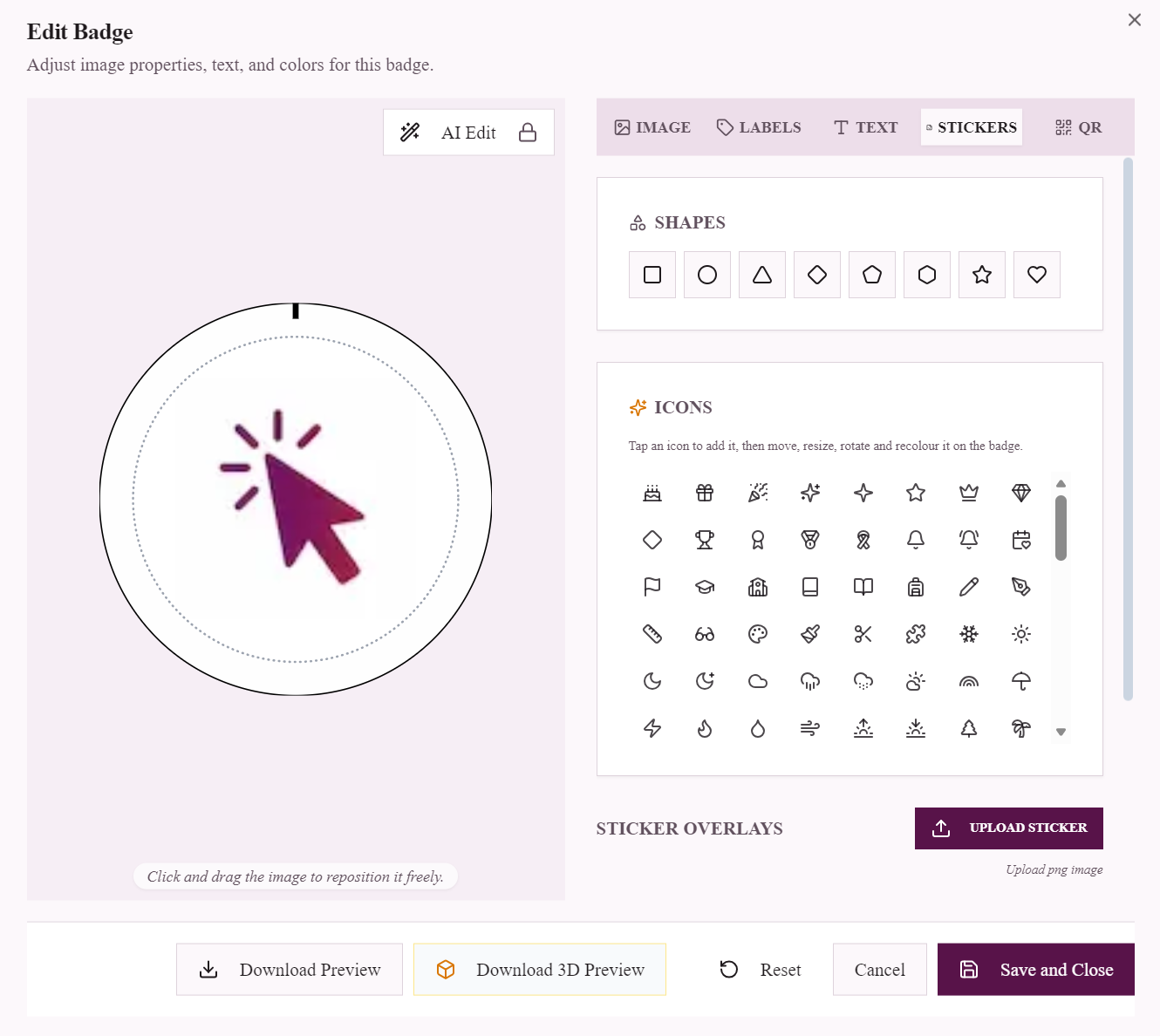
Open any badge in the editor and switch to the Stickers tab. You'll find two new sections:
- Shapes — square, circle, triangle, diamond, pentagon, hexagon, star and heart. Perfect for badges, frames, banners and accents.
- Icons — a curated library of 150+ icons across celebrations, school, weather, food, animals, music, travel and more: birthday cake, gift, party popper, graduation cap, trophy, medal, crown, snowflake, sun and moon, pizza, hearts, paw prints, rockets and dozens more.
Every shape and icon behaves the same way: drag to move, drag a corner to resize, rotate, and recolour it — and it prints razor-sharp because it's drawn as crisp vector art, not a low-resolution image.
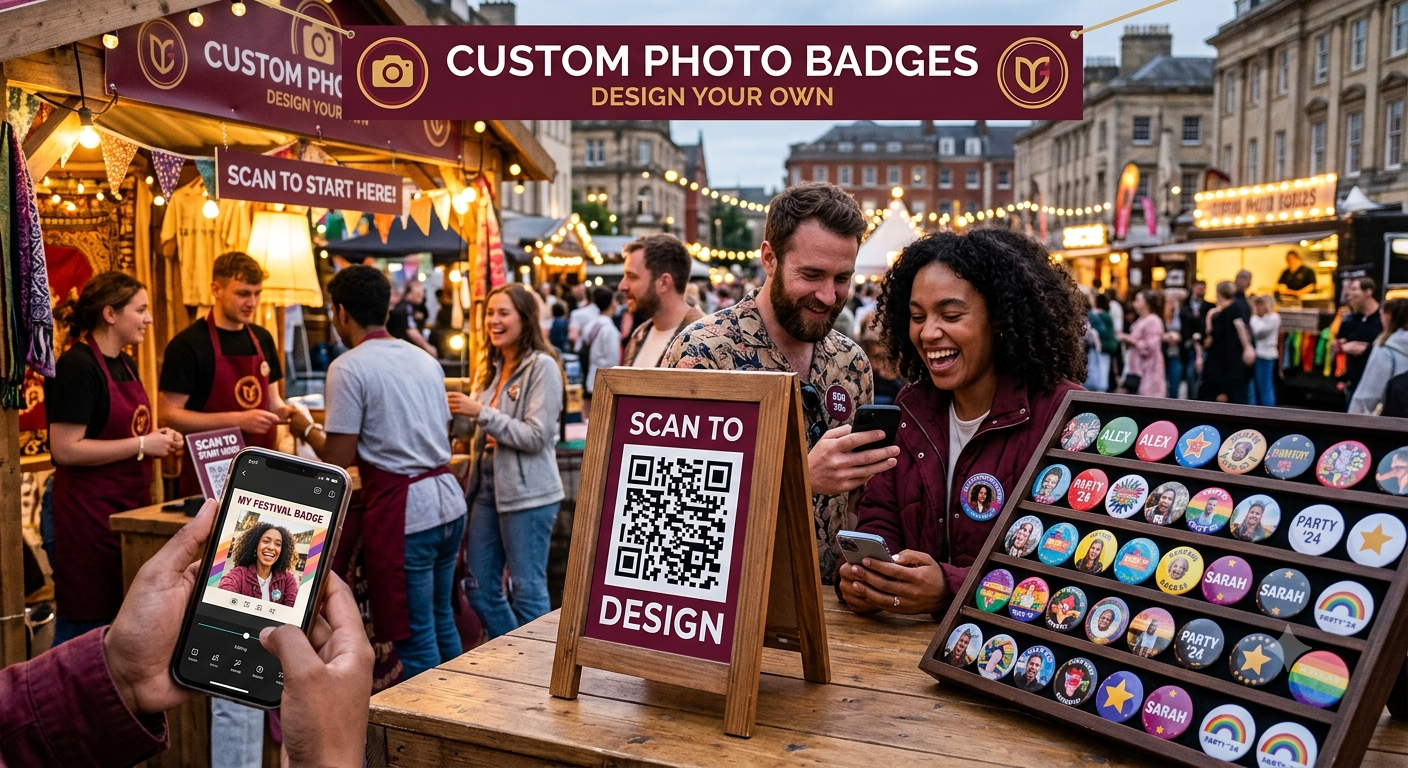
Why it matters: event badges, party favours, school and club pins, wedding and birthday keepsakes — a single themed icon does more to communicate the occasion than a whole line of text.
How to add a shape or icon (step by step)
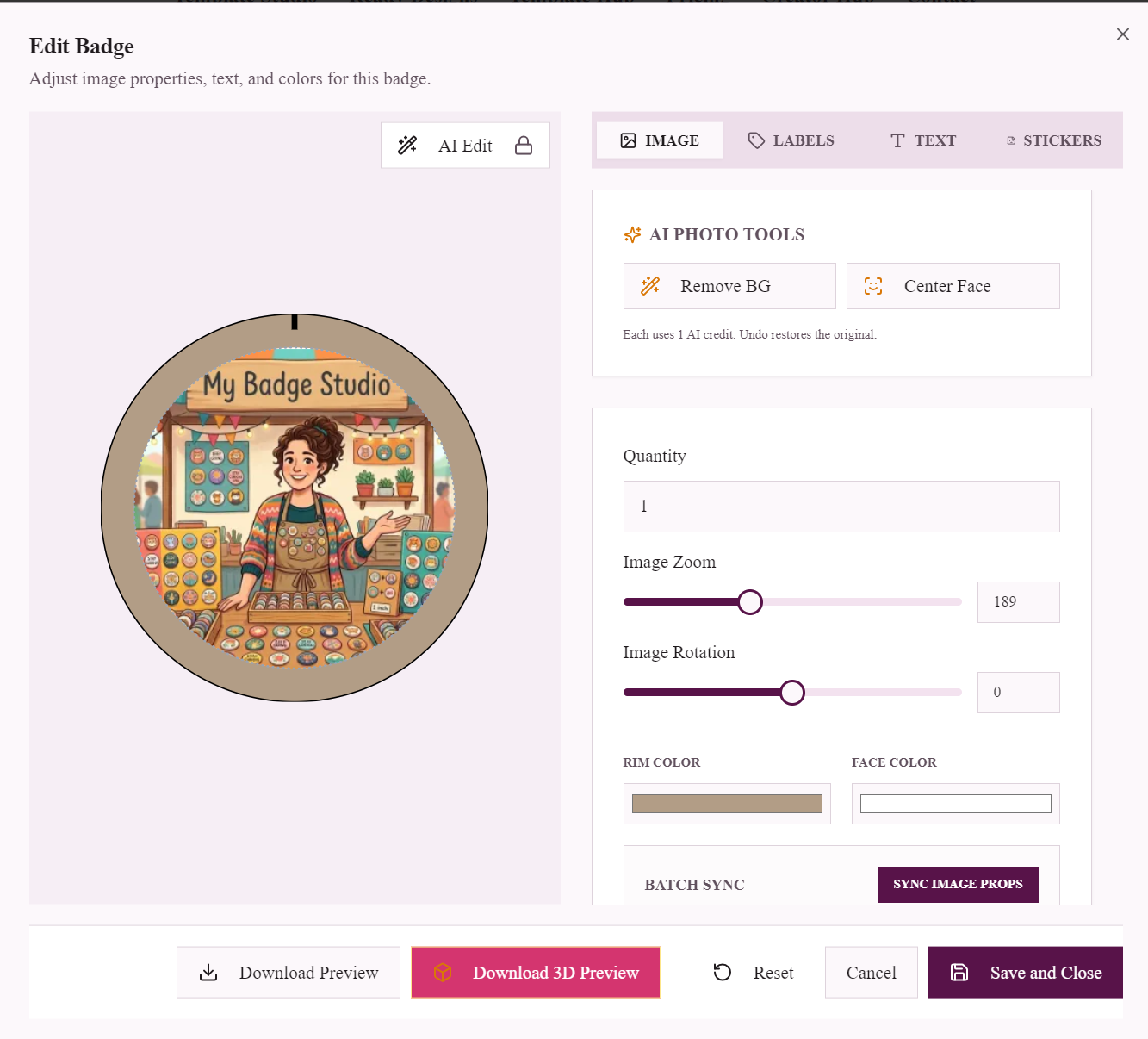
- Open your badge. In the Template Studio, upload a photo (or start from a blank badge) and hover it, then click ✏️ Edit.
- Go to the Stickers tab. Shapes and icons now live here (alongside your PNG sticker uploads).
- Add a shape by tapping one of the shape buttons, or add an icon by tapping any icon in the grid — it drops straight onto the badge.
- Position it. Drag it where you want, drag a corner handle to resize, and use the rotate handle to angle it.
- Style it. With the shape/icon selected, set its line colour, fill colour and line width. Turn fill on for a solid look, or keep it as a clean outline.
That's it — a few taps and your badge has a professional decorative accent.
Ideas for using shapes and icons
- Birthdays — add a cake, gift or party popper and the age in curved text.
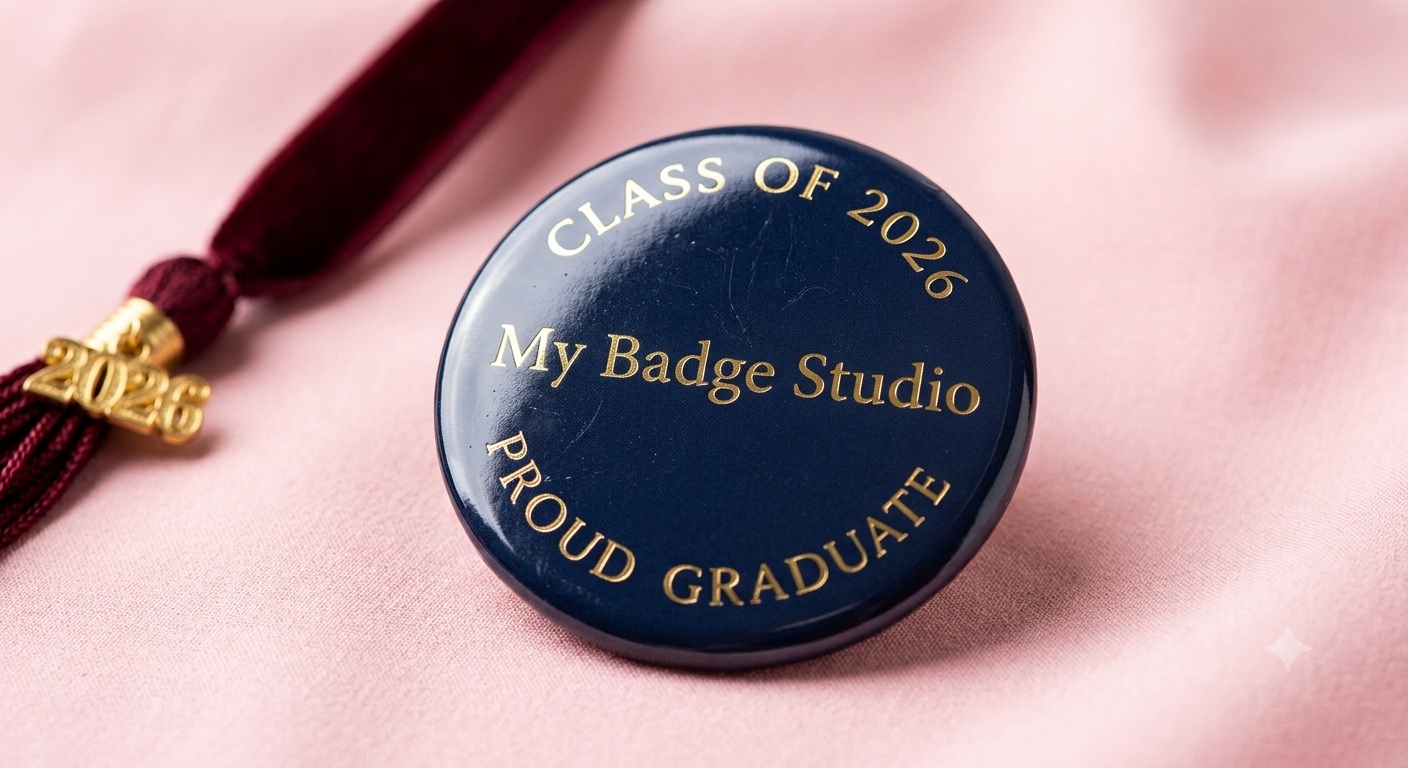
- Graduation — a graduation cap and a star make an instant class-of-2026 pin.
- Weddings & events — hearts, rings and floral icons for favours and name badges.
- Schools & clubs — trophies, medals and mascots for teams and reward badges.
- Seasonal — snowflakes for winter, suns for summer, pumpkins and more for holidays.
- Framing — use a circle, hexagon or diamond as a border around a photo or monogram.
Tips for the best results
- Keep it simple. One or two icons usually reads better than a crowded badge.
- Match your colours. Recolour icons to your badge's rim or theme colour for a cohesive look.
- Mind the trim. Keep important icons inside the inner guide so nothing important is cut off.
- Combine with text and QR. Pair an icon with curved text or a QR code for badges that inform as well as decorate.
Sizes you can decorate
- 58mm button badge template — the most popular pin size.
- 44mm button badge template — a versatile mid-size badge.
- 50×50mm square fridge magnet template — great for themed photo magnets.
- Browse all templates and sizes.
Start free — no credit card required. Open the studio, hit the Stickers tab, and give your badge some personality.
Frequently Asked Questions
How do I add an icon to my badge?
Open your badge in the My Badge Studio editor, go to the Stickers tab, and tap any icon in the Icons grid. It drops onto the badge, and you can then drag to move it, resize from the corners, rotate, and change its colour.
How many icons are available?
There are 150+ built-in icons across celebrations, school, weather, food, animals, music, travel and symbols — including birthday cake, graduation cap, gift, trophy, crown, hearts, stars, snowflakes and many more. Plus geometric shapes: square, circle, triangle, diamond, pentagon, hexagon, star and heart.
Is adding shapes and icons free?
Yes. Shapes and icons are free to add and design with. Free downloads include a small mybadgestudio.com label; any paid plan removes it, or you can buy a download pack of clean downloads.
Will the icons print clearly?
Yes. Shapes and icons are drawn as vector art, so they stay crisp and sharp at any size — in the preview, the 3D mockup, and the final print or PDF.
Can I change an icon's colour and size?
Absolutely. Select the icon on the badge and use the controls to set its line colour, fill colour and line width, and drag its handles to resize and rotate it to fit your design.