Create Your Own Badge & Fridge Magnet Template

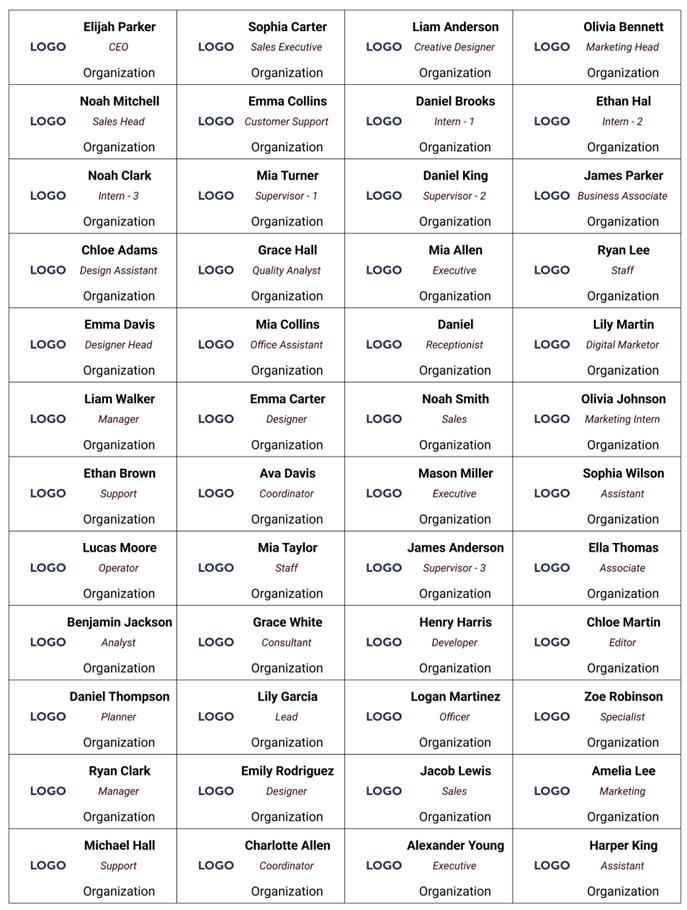
If you print the same size and shape again and again — a 58 mm round pin, a 63.5 mm square magnet, your standard name-badge sheet — you should not be rebuilding that layout every time. Save it once as your own template and reload it in a single click, ready for the next batch of photos and names.
What a custom template actually is
A template in My Badge Studio is a reusable layout — the geometry of your sheet. When you save one, it remembers:
- Badge shape and its exact dimensions — round, square, rectangle, heart or oval.
- Paper size — A4, Letter, and so on.
- How many per sheet — your columns × rows.
- Spacing — the gaps between badges and the page margins.
What it does not save is just as important: your photos, names, text and stickers are not part of a template. That is by design — a template is the empty tray you drop fresh artwork into each time. (To save an actual filled-in design — photos and all — use a saved project instead.)
Template vs project, in one line: a template is the blank sheet layout you reuse for many jobs; a project is one finished job with its photos and names. Most sellers use both.
Step by step: save your first template
- Build the sheet exactly how you want it. In the studio, set the badge shape, the badge size, your paper size, and the columns & rows — then fine-tune the gaps and margins until one sheet looks right. Don't worry about images yet; only the layout is saved.
- Open the My Templates panel. It's in the studio's layout settings and shows a small "X/N used" counter so you always know how many slots your plan has left.
- Give it a clear name (up to 40 characters). Describe the sheet so future-you knows it at a glance — e.g. "58mm round · A4 · 24-up" or "63.5mm square magnet · 12-up".
- Click Save current. That's it — the layout is stored on your account.
Step by step: reuse it later
- Open the template picker and look under the My Templates group — your saved layouts appear there marked with a ⭐. (You can also use the "Load a saved template…" dropdown right inside the My Templates panel.)
- Pick your template. The sheet instantly snaps to that shape, size, grid and margins.
- Add this order's photos and names and print or download. The layout is already perfect, every time.
To remove one you no longer need, hit the trash icon next to it — that frees a slot. There's no rename: to tweak a template, delete it and save a fresh one under the new name.
How many can I save? (by plan)
Custom templates are a paid feature — you'll need to be signed in on a Creator plan or above. Your slot count scales with your plan:
| Plan | Custom templates |
|---|---|
| Free | — |
| Creator | 3 |
| Business | 10 |
| Business Plus | 25 |
| Business Pro | 50 |
Because templates are stored on your account, they follow you across devices — save one on your laptop and it's waiting on the studio computer too. See the pricing page for full plan details.
Ways sellers actually use this
- Badge sellers: one template per product you list — a 25 mm pin sheet, a 44 mm sheet, a 58 mm sheet. Switching product is one click instead of re-measuring.
- Fridge magnet sellers: save your best-selling "90×65 mm rectangle · 6-up" and "63.5 mm square · 12-up" sheets and fulfil orders in seconds.
- Schools & offices: keep your standard name-badge sheet ready every term or event — same size, same grid, no setup.
- Live magnet stalls & events: load your booth's go-to layout between customers so every guest's photo drops straight into place.
Set your layout up thoughtfully once, save it, and every future order starts from a perfect sheet. Ready to build yours?
Happy Designing! - My Badge Studio team Visit My Badge StudioFrequently Asked Questions
What's the difference between a template and a project?
A template saves only the layout — badge shape, size, paper size, rows and columns, and margins — so you can reuse that sheet for many jobs. A project saves a whole finished design including your photos, names and text. Templates are for the reusable sheet; projects are for a specific order.
Does saving a template save my photos too?
No. A template is the sheet layout only — your images, names, text and stickers are not stored in it. When you load a template you get the empty layout and add fresh artwork. To save an actual design with its photos, save it as a project instead.
How many custom templates can I save?
It depends on your plan: Creator saves 3, Business 10, Business Plus 25, and Business Pro 50. The Free plan doesn't include custom templates. The My Templates panel shows an X/N counter so you can see how many slots remain.
Can I use one template for both badges and fridge magnets?
Yes. A template is just sheet geometry, and badges and fridge magnets share the same layout engine — the shape and size you save is what matters. Save one template per size and shape you regularly produce and switch between them in a click.
Can I rename or edit a saved template?
There's no rename. To change a template, delete it with the trash icon (that frees a slot) and save the updated layout as a new template with the name you want. Deleting a template never affects any project or design you've already saved.
Do my saved templates work on other devices?
Yes. Custom templates are stored on your account, not on one computer, so they appear in the My Templates group anywhere you log in — save on one device and reload on another.