How to Split One Photo Into a Grid of Fridge Magnets
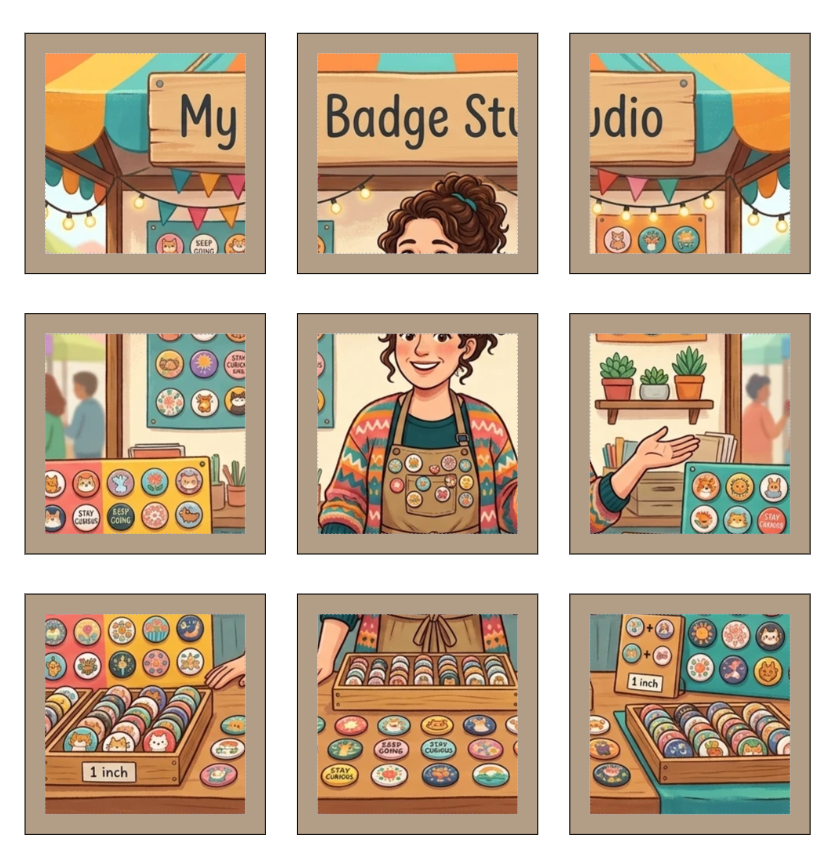
One of the most eye-catching things you can do with fridge magnets is turn a single photo into a set of tiles that fit together into the full picture — a photo mosaic on the fridge, made from individual magnets. My Badge Studio's new Puzzle tool does exactly this: upload one image, choose a grid like 2×2 or 3×3, and it splits your photo into that many print-ready magnet pieces automatically.
Here's how the photo-split magnet feature works, what it's great for, and how to make your own set in a couple of minutes — free.
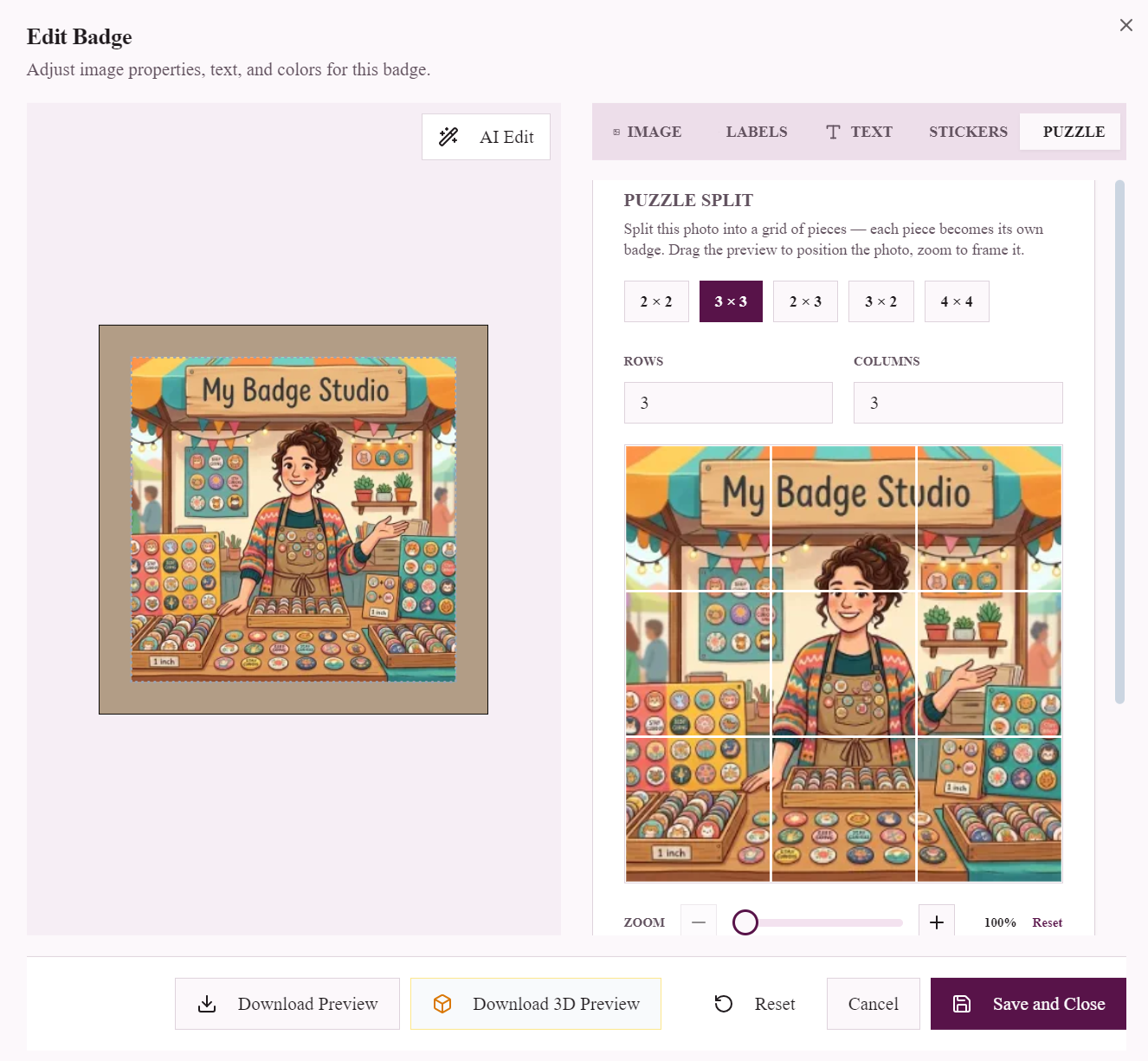
Frame your photo, choose a grid, and the Puzzle tool cuts it into perfectly aligned magnet pieces.
What is a photo-split (puzzle) magnet set?
Instead of shrinking a whole photo onto one small magnet, a puzzle magnet set cuts the picture into a grid of pieces — each one its own magnet. Arrange them on the fridge in the same grid and the full image reappears at a much larger, wall-style size. A 3×3 split of 50×50mm magnets, for example, becomes a 150×150mm photo made of nine tiles.
It's a favourite for wedding and baby photos, pet portraits, band and event artwork, and small businesses making premium keepsakes to sell.
How the Puzzle tool splits your photo
Open any square or rectangular magnet in the Edit Badge window and switch to the Puzzle tab. From there:
- Pick a grid — presets for 2×2, 3×3, 2×3 and 3×2, or set your own rows and columns up to 6×6.
- Frame the photo — drag to position it and zoom in or out so the part you want lands inside the grid. A live overlay shows exactly where each cut falls.
- Split — the tool cuts the photo into that many pieces, each one becoming its own magnet, in order.
Crucially, every piece is cut to include the wrap-around bleed automatically — adjacent pieces overlap slightly at the edges and border tiles extend cleanly past the photo, so there are no white edges when the magnets are pressed. Assemble them in the grid and the picture lines up seamlessly.
Tip: Puzzle splitting is designed for square and rectangular magnets — round or heart shapes leave gaps between the pieces, so the mosaic won't line up.
What size photo do I need?
Because the pieces reassemble into a larger picture, the quality of each tile depends on your original image — a higher-resolution photo gives sharper pieces. The good news: any modern phone photo (12 megapixels or more) is plenty, even for a 3×3 or 4×4 grid. The tool never upscales, and it warns you if a photo is too small for the size you've chosen, so you can pick a smaller grid instead.
How to make photo-split magnets (3 steps)
- Start a magnet template. Open a 50×50mm square, 63.5mm square or 90×65mm rectangular magnet and upload your photo.
- Split it in the Puzzle tab. Choose your grid, frame the photo with drag and zoom, and hit Split. Each piece appears as its own magnet, ready to print.
- Download your print-ready PDF. Generate a high-resolution PDF with bleed and cut lines built in, laid out to fit the most pieces per sheet.
Start free — no credit card required.
Great uses for puzzle magnets
- Keepsakes & gifts — wedding, baby, holiday and pet photos as a fridge mosaic.
- Events — let guests take home one tile each of a group photo or event artwork.
- Small businesses — sell premium multi-piece photo magnet sets, made to order.
- Promo & branding — split a logo or poster across a grid for a bold fridge display.
Other magnet sizes and shapes
- 50×50mm square fridge magnet template — the classic mosaic tile.
- 63.5mm square fridge magnet template — larger square pieces.
- 90×65mm rectangular fridge magnet template — wide-format tiles.
- Browse all templates and sizes.
Frequently Asked Questions
What is a puzzle or photo-split magnet?
It's a single photo cut into a grid of separate fridge magnets. Arranged together in the same grid, the individual magnet tiles line up to recreate the full picture at a larger size — for example a 3x3 split of 50mm magnets forms a 150x150mm photo.
How do I split a photo into fridge magnets?
Upload your photo to a square or rectangular magnet template in My Badge Studio, open the Edit Badge window and switch to the Puzzle tab. Choose a grid (like 2x2 or 3x3), frame the photo with drag and zoom, and press Split. Each piece becomes its own print-ready magnet.
Does the photo quality matter?
Yes. Each piece's print quality depends on your original image, so a higher-resolution photo gives sharper tiles. Any modern phone photo (12MP or more) works well even for larger grids. The tool never upscales and warns you if an image is too small for the grid you chose.
Which magnet shapes work for puzzle splitting?
Square and rectangular magnets. Round, oval and heart shapes leave gaps between the pieces, so the mosaic won't line up — the Puzzle tool is available for box-shaped magnets only.
Are the edges handled automatically?
Yes. Every piece is cut with the wrap-around bleed included, so adjacent tiles overlap slightly and border pieces extend cleanly past the photo. There are no white edges when the magnets are pressed, and the picture lines up seamlessly when assembled.