Print Badges at the Right Size: 100% Scale and the Test Square
The most common printing problem with badges isn't the design — it's the print settings. If your badges come out a few millimetres too small, or the image doesn't fill the badge after pressing, the sheet was almost certainly scaled down when it printed. One setting fixes it.
Why badges print too small
Badge templates are drawn to the millimetre: a 58mm badge needs a 70mm circle so the design wraps round the back. But many print dialogs default to "Fit to page" or "Shrink oversized pages", which quietly scale the whole sheet down by a few percent to fit inside the printer's margins. A few percent sounds tiny, but on a 70mm circle it's enough for the design to fall short of the edge once it's pressed.
The fix: print at 100% scale / Actual size, every time.
How to print at 100%
| Where you print from | What to set |
|---|---|
| Chrome or Edge (studio Print button) | In the print dialog, open More settings and set Scale to Custom: 100 (not "Fit to page"). |
| Adobe Acrobat Reader (downloaded PDF) | Under Page Sizing & Handling choose Actual size, not "Fit" or "Shrink oversized pages". |
| Mac Preview | Set Scale to 100% and untick "Scale to fit". |
| Any other app | Look for Scale, Actual size or 100%, and turn off any "fit" option. |
Also check the paper size in the print dialog matches the paper in the tray and the paper you chose in the studio — A4 on A4, Letter on Letter. A mismatch makes the printer resize the page.
Check your printer with the test square
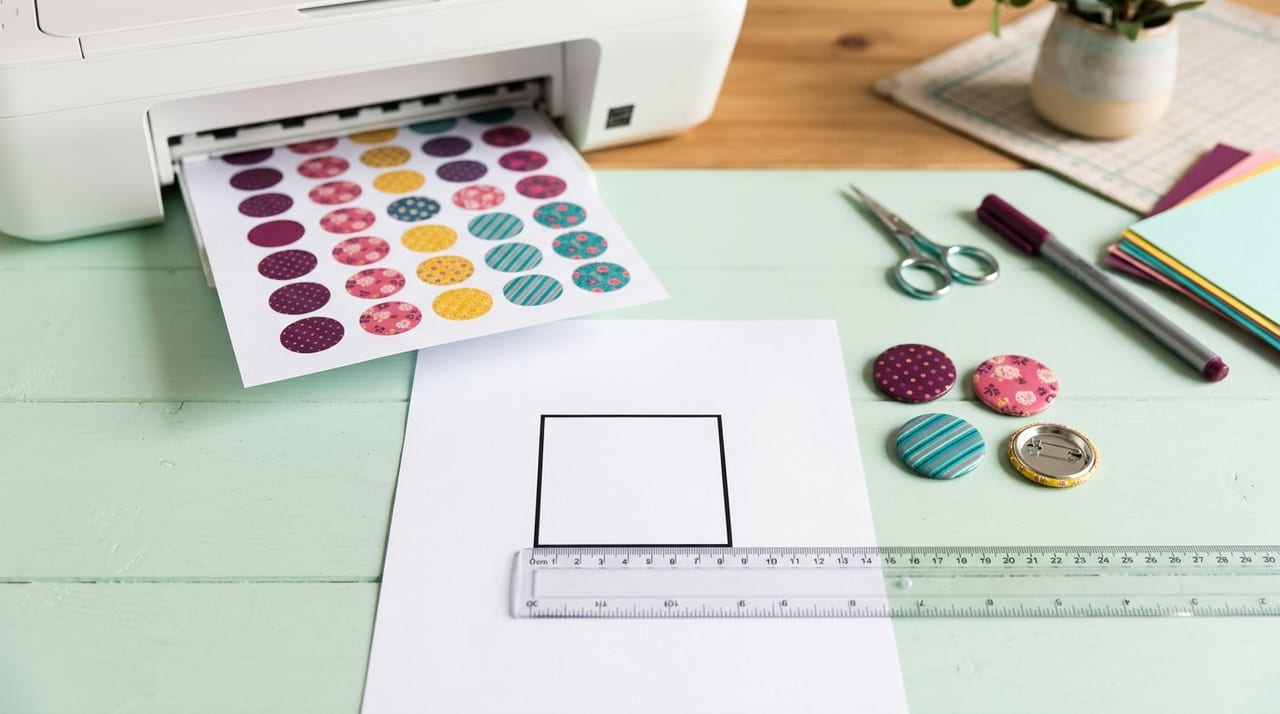
The studio has a free calibration sheet: open the Download menu and choose Print a test square. It downloads a one-page PDF on your paper size with a square that must measure exactly 50mm on each side, and a millimetre ruler under it. It contains no design, so it doesn't use a download.
- Print the test square with the settings above.
- Measure the square with a ruler.
- 50mm? Your settings are right — print your badges the same way.
- Smaller (say 48mm)? Something is still scaling. Recheck Scale / Actual size and turn off "Fit to page", then print the square again.
Do this once per printer (and again if you change computer or app); after that your settings stay put.
Edges cut off?
If the size is right but the outermost badges are clipped at the paper edge, that's your printer's unprintable margin, not scaling. Add a few millimetres of border space on that side in the studio.
Other print tips
- Use the right paper. Thin (80–120gsm) paper or photo paper made for badges presses best; very thick card can jam a badge press.
- Print in best quality for photos.
- Let ink dry before pressing, especially on glossy paper, so it doesn't smudge.
- Print one sheet first and press a badge before running the whole batch.
Open the studio, print a test square, and you'll know your badges will come out exactly the right size.
Frequently Asked Questions
Why are my printed badges too small?
The print dialog almost certainly scaled the sheet down with "Fit to page" or "Shrink oversized pages". Print at 100% / Actual size and make sure the printer's paper size matches your paper; the badges will then print at their true size.
How do I print at actual size in Chrome?
In Chrome's print dialog, open More settings and set Scale to Custom: 100 instead of Fit to page. In Adobe Reader choose Actual size under Page Sizing & Handling; on a Mac in Preview, set Scale to 100%.
What is the test square?
A free one-page PDF from the studio's Download menu (Print a test square). It prints a square that must measure exactly 50mm. If it measures 50mm your print settings are right; if it's smaller, something is still scaling the page.
The size is right but the edge of my badges is cut off. Why?
Most printers can't print right to the paper's edge. Add a few millimetres of border space on that side of the sheet in the studio so every badge sits inside the printable area.
Does printing the test square use one of my downloads?
No. It contains no design, so it's free and doesn't count as a download.