Columns, Rows, Gaps and Border Space: Setting Up a Badge Sheet
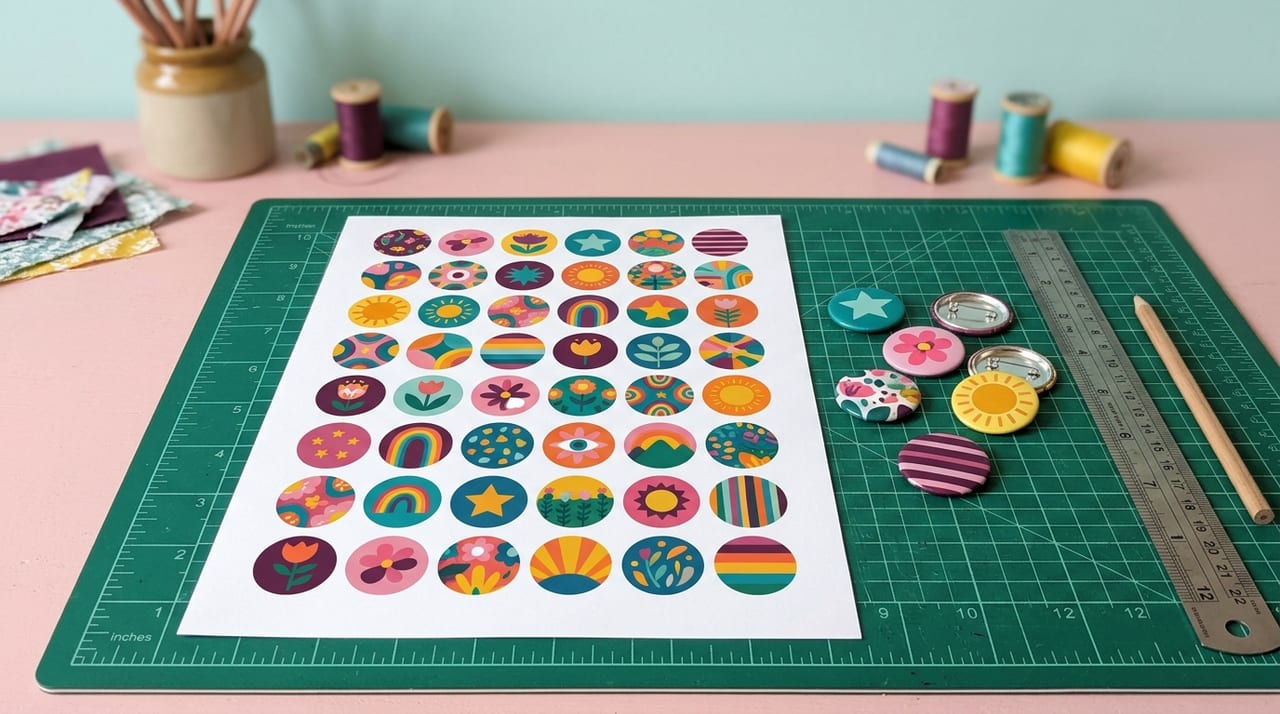
Every template arrives already laid out — the right number of badges, spaced and centred on your paper. Most of the time you won't touch the grid at all. But when you want to fit one more row, leave room for a cutter, or keep clear of a printer that won't print to the edge, these four settings under Sheet are how you do it.
Columns and rows
Columns is how many badges sit across the sheet; rows is how many go down. Columns × rows is the number of badges per page — 3 columns × 4 rows is 12. Picking a template sets these to the most that fit; you can lower them to print fewer, or raise them if you've reduced the gaps and there's room.
If you ask for more than fits, the badges run off the paper — the preview shows it straight away, so trust what you see.
Column gap and row gap
The column gap is the space between badges side by side; the row gap is the space between rows. Both are in millimetres and measured edge to edge between cut lines.
- 0 mm packs badges touching — the most per sheet. Fine for cutting circles with a hand-held badge cutter, where each circle is punched out on its own.
- 2–3 mm leaves a strip between pieces, which makes it easier to cut with scissors or a guillotine and stops one slip spoiling the next badge.
- More if a cutting machine needs clear space, or you just want breathing room.
For example, the 58mm template on A4 fits three 70mm cut circles across exactly — 210mm, the full width of the paper — so it uses no column gap and a small 2mm row gap.
Border space (margins)
Border space is the empty margin between the paper's edges and the badges — top, bottom, left and right, each in millimetres.
The main reason to change it is your printer. Most home and office printers can't print right to the edge: they leave a few millimetres unprinted on each side. If a badge sits in that strip, its edge gets cut off. Add a few millimetres of border space on the side that clips (often the bottom) and the whole badge prints.
Fitting more badges on a sheet
- Reduce the column and row gaps — 0mm if you cut each circle separately.
- Trim the border space as far as your printer allows.
- Add a column or row and check the preview: if everything stays on the paper, it fits.
- Or move up a paper size — A3 and A3+ hold far more.
Leaving room for cutting
If you trim by hand or with a machine, give yourself space: 2–3mm gaps and a sensible border. Turning on cutting marks prints guides at each badge position, and a machine-cut sticker sheet needs clear corners for its registration marks — so don't pack those edge to edge.
Save the set-up for next time
Once a sheet is just right for your printer and cutter, sign in and save it under Template → My Templates (on plans that include saved templates) and reload it in one click next time — the sheet set-up (size, paper, rows, columns, gaps and border space) comes back exactly. See creating your own template.
Then print one sheet at 100% / Actual size before the batch. Open the studio to start.
Frequently Asked Questions
What gap should I leave between badges?
0mm if you punch each circle out with a badge cutter — you'll fit the most per sheet. 2–3mm if you cut with scissors or a guillotine, so a slip doesn't spoil the next badge. More if a cutting machine needs clear space.
Why does the edge of my badges get cut off when printing?
Most printers can't print right to the edge of the paper. If a badge sits in that unprinted strip, it's clipped. Add a few millimetres of border space on that side so the whole badge prints, and print at 100% / Actual size.
How do I fit more badges on one sheet?
Reduce the column and row gaps, trim the border space as far as your printer allows, then add a column or row and check that everything stays on the paper in the preview. A bigger paper size such as A3 holds many more.
Can I save my sheet settings?
Yes, when you are signed in on a plan that includes saved templates. Save the set-up under My Templates and reload it in one click; it keeps the badge size, paper, rows, columns, gaps and border space. Photos and text are saved separately with Designs.