How to Add a Custom Image Uploader to Your Shopify Store
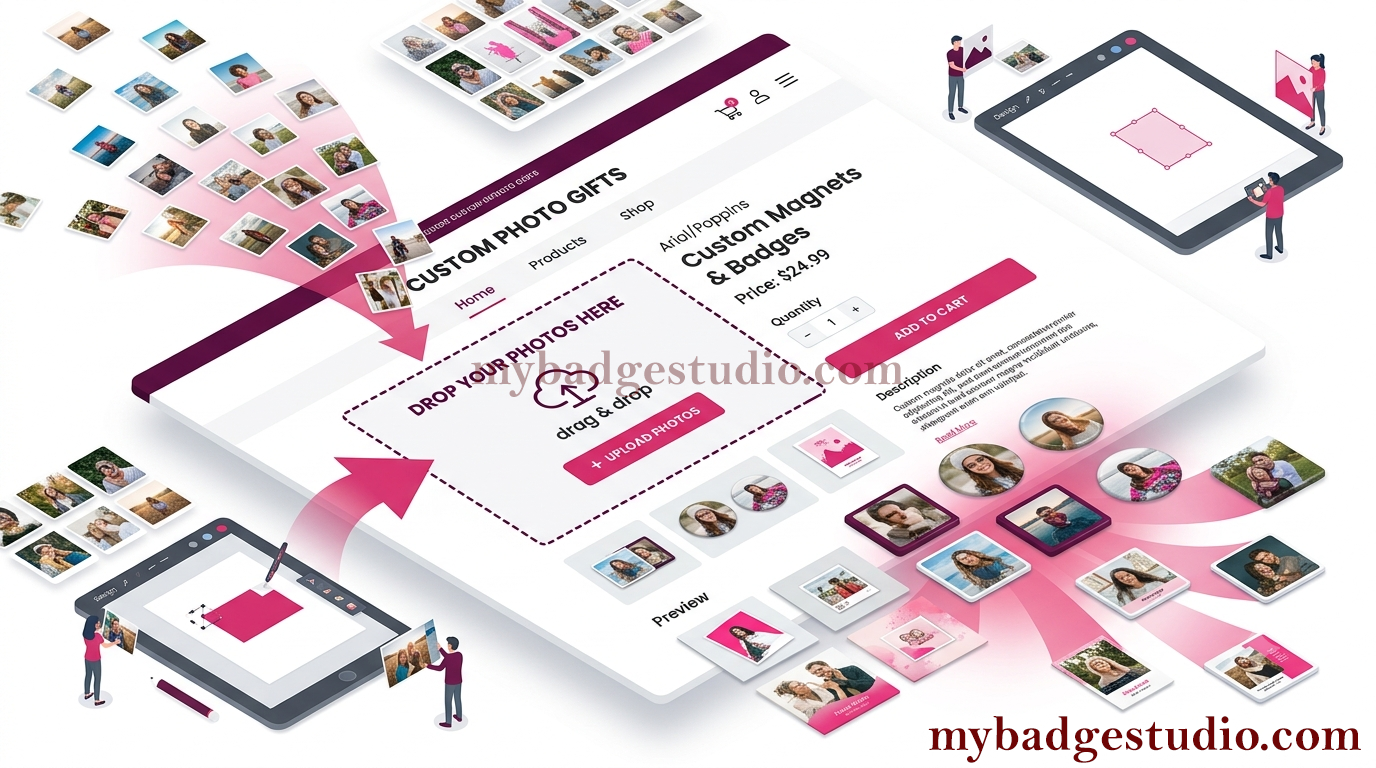
Selling anything personalised on Shopify — custom button badges, fridge magnets, business cards, photo prints or stickers — means letting customers upload their own images and design the product themselves. My Badge Studio lets you embed exactly that on your Shopify product pages: a live uploader and editor, with bulk (multi-image) upload built in. Here's the full setup.
You'll create a custom template, turn it into a product, and paste one embed code into Shopify. No coding, no apps to maintain.
Not on Shopify? The same uploader works on WordPress / WooCommerce — see the WordPress guide — or on Wix, Squarespace, Webflow and plain HTML — see how to add an uploader to any website.
Step 1 — Create your custom template in the Studio
Open the Studio page and build a template at the exact finished size you sell — for example 3.5 × 2 inches for a business card.
Important: because a business card or flexible magnet is a flat product (not a domed badge with a separate rim), set the inner and outer dimensions to the same value. That gives you one clean, edge-to-edge print area with no rim.
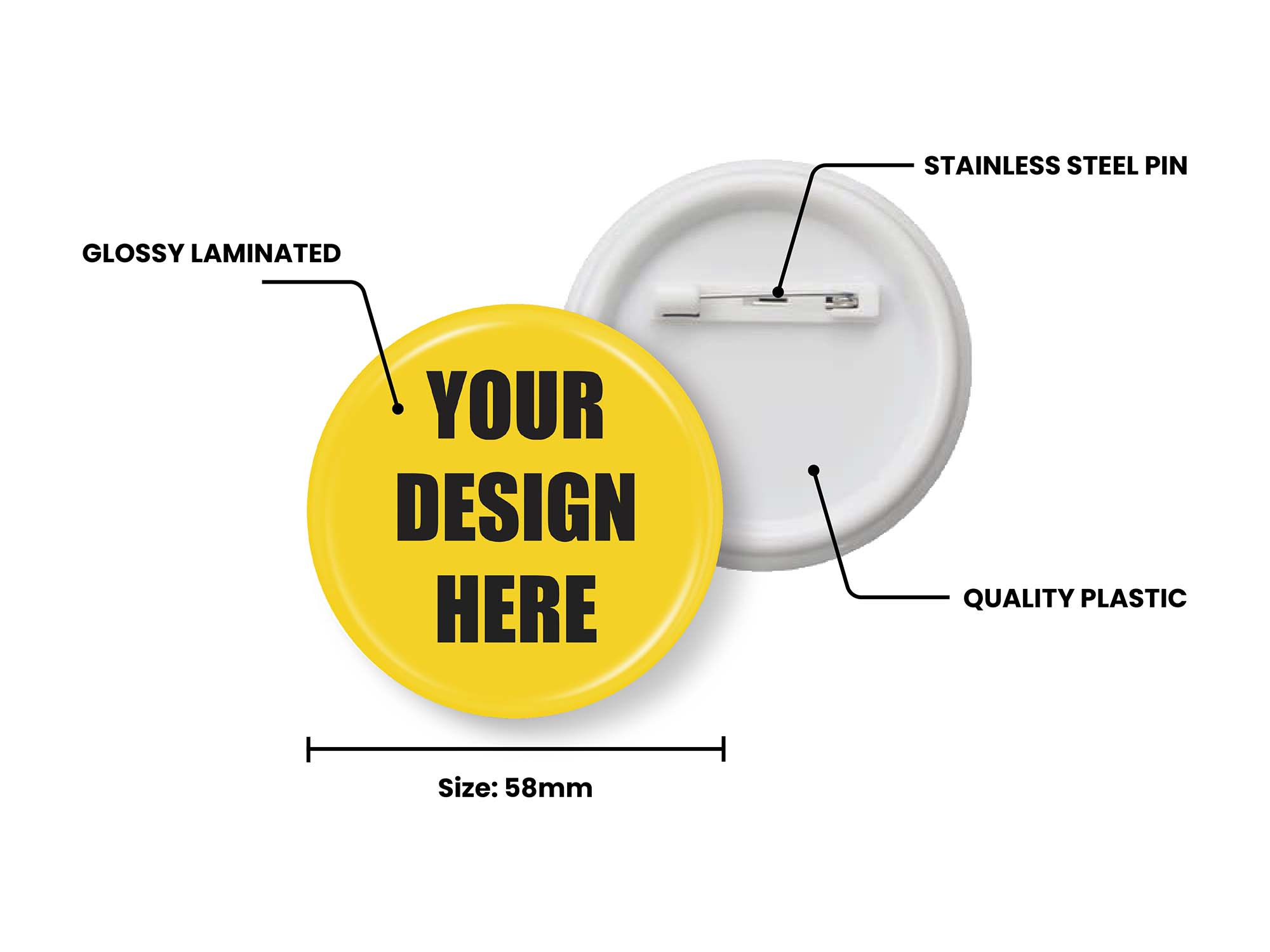
Selling button badges or round fridge magnets instead? You don't need a custom template at all — just pick one of the ready badge and magnet templates (58mm, 44mm, 50×50mm and more). They already include the correct rim, so you can jump straight to Step 2 and select that size for your product.
Set your paper size and any other layout options, then save the template so it's ready to attach to a product.
Step 2 — Create the product in your Seller Dashboard
In the Seller Dashboard, create a new product and fill in:
- Product name — what customers will see (e.g. "Custom Business Cards").
- Select Size for Product — choose the custom template you just made. This ties the uploader to your exact print size.
- Maximum images customers can upload — the cap per order (for example 10). Set it to 0 for unlimited.
- Other settings — configure pricing, description and so on as needed. For a pure Shopify embed these extra settings aren't required, so you can keep them minimal.
Save the product.
Step 3 — Copy the embed code and add it to Shopify
- Open the Integration section of the dashboard — your saved product is listed there.
- Click the product and copy its embed code.
- Paste it into your Shopify product page (via a Custom Liquid / HTML block on the product template).
That's it — the uploader and editor now appear right on your Shopify product page, matched to your template size.
Bulk upload — customers can add multiple images at once
Bulk upload is fully supported. On your Shopify store a customer can select and upload several images at once — up to the limit you set on the product — edit each one in the built-in designer, and then confirm their order. It's ideal for anyone ordering a set: a batch of team business cards, a wall of photo magnets, or a pack of stickers.
Upload-only mode (no editing interface)
Don't need the full editor? The Select Size for Product option also supports an image-upload-only mode. Customers simply upload their images — no editing screen — which is perfect for print-ready artwork or when you just need the customer's file at the right size.
What you can sell with this
- Button badges & pin badges — round, square, oval or heart, using the ready badge templates (which include the rim).
- Fridge magnets — round photo magnets or flat square/rectangular magnets.
- Custom business cards — 3.5 × 2 in, edge-to-edge.
- Photo prints, stickers and labels — customer-supplied images at your exact dimensions.
- Any personalised flat product where the customer provides the artwork.
Tips
- Match inner & outer size for flat products (cards, magnets) so there's no unwanted rim.
- Set a sensible upload limit so orders stay manageable — or 0 for unlimited.
- Use upload-only mode when customers already have print-ready files.
- Test the embed on a live Shopify product page before launching to make sure the size and upload cap behave as expected.
Ready to sell custom products on Shopify? Build your template, create the product, and paste the embed code — your store has a professional image uploader in minutes.
Frequently Asked Questions
Can customers upload multiple images at once?
Yes. Bulk upload is supported — customers can select several images in one go (up to the limit you set on the product), edit each one, and then confirm their order. Set the limit to 0 for unlimited uploads.
How do I make a business card or magnet template (not a badge)?
Create a template at the finished size (e.g. 3.5 × 2 inches for a business card) and set the inner and outer dimensions to the same value. Because it's a flat product rather than a domed badge, matching both dimensions gives you one clean edge-to-edge print area with no rim.
Can I let customers upload without the editor?
Yes. The Select Size for Product option includes an image-upload-only mode, where customers just upload their images without the editing interface — ideal for print-ready artwork.
Do I need the other product settings for Shopify?
No. The extra product settings aren't required for the Shopify integration — you only need the product name, the custom template under Select Size for Product, and the maximum upload limit. Configure the rest only if you want them.