Fill Page: Put One Photo on Every Badge in One Click
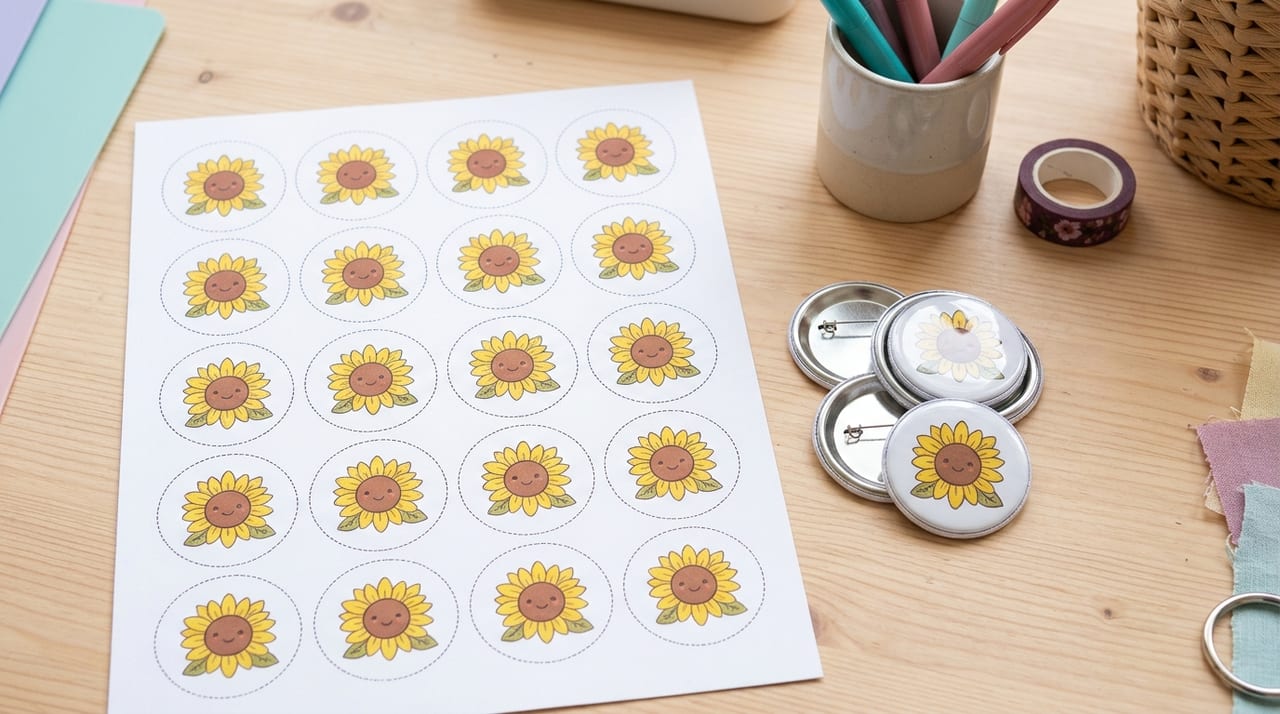
Need twelve of the same badge? You don't have to add the photo twelve times. Fill page copies one photo into every empty space on the sheet in one click — the fastest way to make a run of identical badges or magnets.
What Fill page does
Each photo in the studio has a number of copies. Fill page raises that number by exactly as many as there are empty spaces left on the page, so the sheet ends up full:
- On a 12-badge sheet with one photo on it, Fill page adds 11 more copies — 12 identical badges.
- If three spaces are already used by other photos, it fills the remaining nine.
- If the page is already full, it adds a whole new page of that photo.
A message confirms how many copies were added, and Undo takes it back.
Where to find it
- Photos panel — the Fill page button under each photo.
- On the sheet — point at a badge with a photo and choose Fill page.
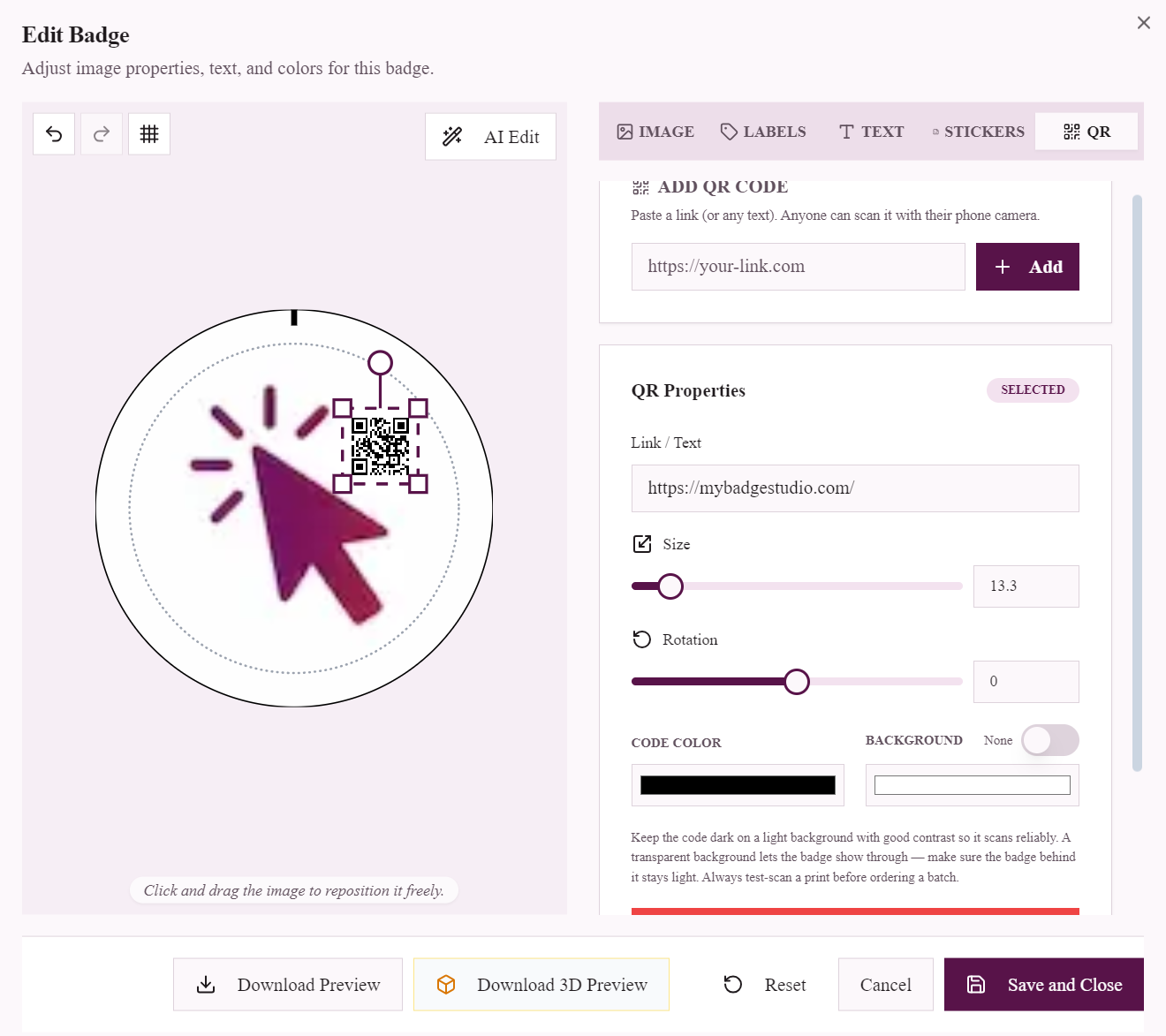
- In the badge editor — next to the Quantity field.
All three do the same thing, so use whichever is nearest.
Mixing photos on one sheet
Fill page fills only the empty spaces, so you can combine it with other photos. Add the designs you want a few of first — set their copies with the arrows — then Fill page the main design to complete the sheet. Each photo's copies are shown in the Photos panel, so you can always see what's on the page and adjust any of them.
Bigger orders
Use Fill page again on a full sheet and you get another full page of the same photo — handy for an order of 50 or 100. The studio shows how many badges are filled and how many spaces are left, and the page controls under the sheet let you step through each page before you download.
For a batch where every badge is different — a name on each — use Names list (CSV) instead: one row per badge.
Tips
- Edit the photo first. Position, zoom and text are copied with it, so get one badge right in the editor, then fill.
- Check empty spaces. Empty spaces print blank. The progress bar above the preview tells you how many are left.
- Mixed-size sheets place pieces section by section, so Fill page isn't offered there — set the copies directly instead (see multiple sizes on one page).
Open the studio, add a photo, and press Fill page.
Frequently Asked Questions
How do I put the same photo on every badge?
Add the photo, then press Fill page — in the Photos panel, on the sheet, or next to Quantity in the badge editor. It copies the photo into every empty space on the page in one click.
What happens if I press Fill page on a full sheet?
It adds a whole new page of that photo, so you can build up large orders of one design quickly.
Can I fill the page around other photos?
Yes. Fill page only fills the empty spaces, so add the other designs first and then fill the rest with your main photo.
Why isn't Fill page available?
It isn't offered on mixed-size sheets, where pieces are placed section by section. Set the number of copies directly with the arrows instead.