Decorative Frames for Button Badges and Fridge Magnets: 35 Designs in the Badge Designer
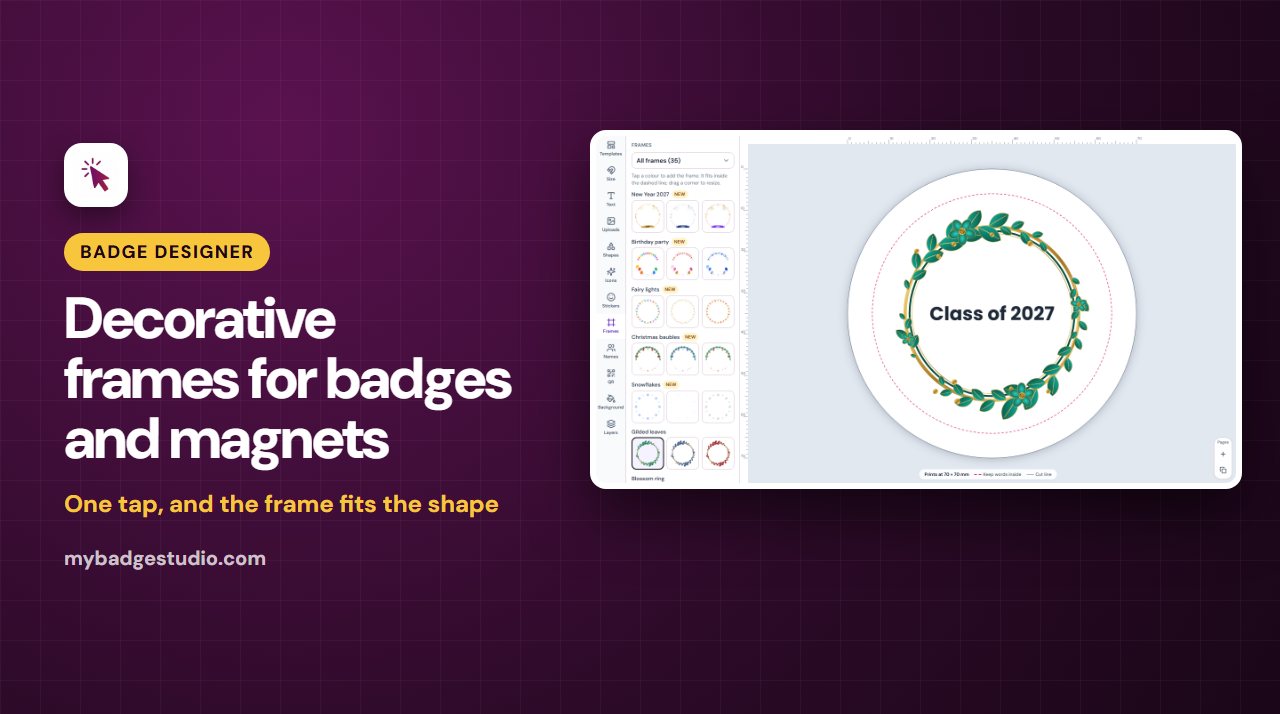
A frame turns a plain name or photo into a finished-looking badge. The Badge Designer's Frames tab has 35 original frame designs in 99 colourways, from Christmas baubles to floral wreaths, and each one fits your badge or magnet in a single tap.
What's in the Frames tab
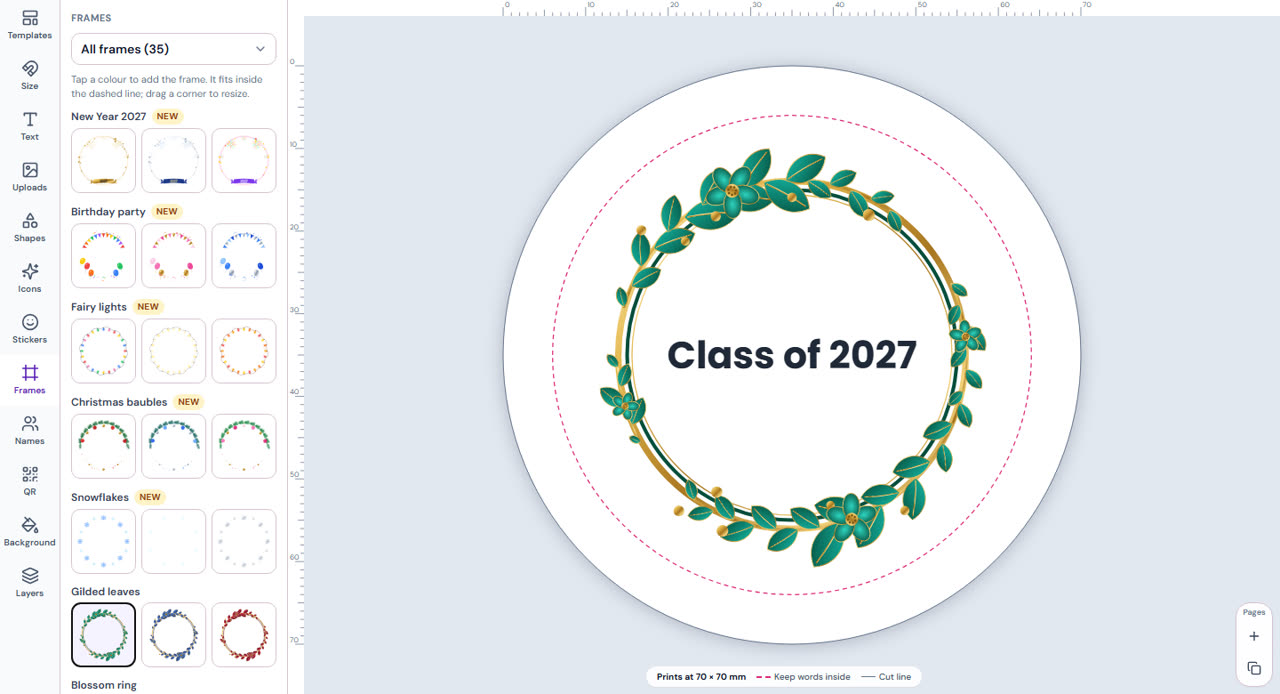
Use the Frame theme menu at the top of the tab to show one theme at a time, or All frames (35). The newest designs are marked New.
| Theme | Frames |
|---|---|
| Holidays | New Year 2027, Fairy lights, Christmas baubles, Snowflakes, Eid and Ramadan, Lunar New Year, Halloween, Easter eggs, Lucky shamrocks |
| Party | Confetti, Starry ring, Birthday party |
| Floral | Gilded leaves, Blossom ring, Leafy wreath, Watercolour bouquet, Floral corners, Daisy chain, Sunflowers |
| Love | Ring of hearts |
| Kids | Scalloped edge, Baby shower, Under the sea, Outer space |
| School & sports | Graduation, Sports balls (all sports, football or basketball), Back to school |
| Trending | Boho rainbow, Checkerboard, Groovy waves, Rainbow ring |
| Classic & photo | Laurel wreath, Photo frame with pins, Classic double line, Film strip |
Every design comes in two to five colourways, for example Gilded leaves in emerald, navy or wine, or Christmas baubles in red and gold, blue and silver, or pink and gold.
How to add a frame
- Open the Badge Designer and pick your badge or magnet size first.
- Open the Frames tab and, if you like, choose a theme.
- Tap a colour. The frame is added in the centre, sized to sit just inside the dashed pink line, the part of a badge that shows once it's pressed.
- Drag it to move it, or drag a corner to resize it. Corners keep the frame's proportions; hold Shift to stretch it.
Frames on every shape
Frames work on every badge and magnet in the Designer: round badges from 25 to 75 mm, the 65 × 45 mm oval, the heart, square and rectangle magnets, the 58 mm round magnet and custom sizes. The thumbnails in the tab are drawn to your product's proportions, so you see what you'll get.
- Round frames (29 of the 35) stay circles. On a round badge they're as big as the face allows; on an oval or rectangle they're sized to its height; on a heart they sit as a smaller circle in the middle.
- Rectangular frames (Photo frame with pins, Floral corners, Classic double line, Scalloped edge, Film strip and Groovy waves) fill square and rectangle magnets exactly, and sit as a rectangle inside round shapes.
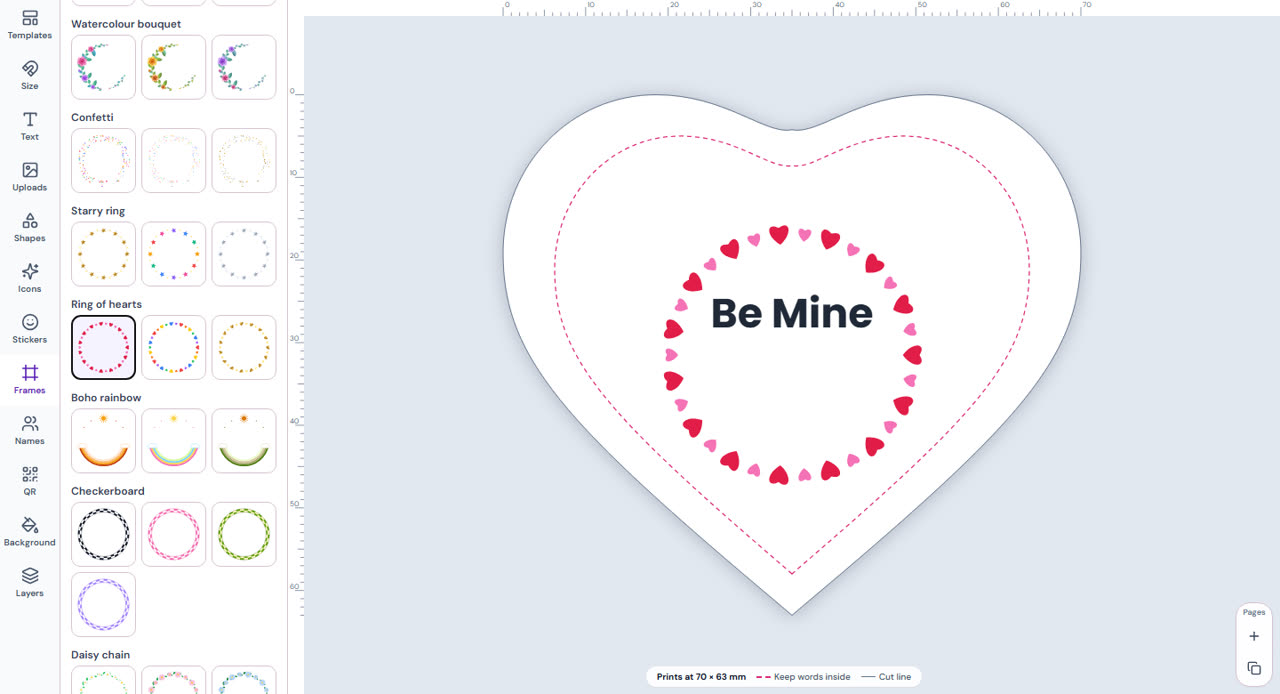
Tip: choose your size before adding a frame. If you change the size later, the frame is scaled with the rest of your design but not redrawn for the new shape, so for the best fit remove it and add it again.
Make it yours
- Colour: pick a different colourway, or select the frame and use the picture tools (hue, saturation, brightness, contrast, black and white, sepia and filter presets), plus opacity, shadow and flip.
- Layers: a new frame goes on top. Use Send to back, or drag it in the Layers tab (where it's called "Frame: name"), to tuck it under a photo or text.
- Combine them: each tap adds another frame, so you can pair a round ring with floral corners.
- Remove: select the frame and choose Delete.
Frames are drawn as vector art, so they stay sharp at any size: in the 3D preview, in your PDF, PNG and JPG downloads, and when you add the design to the Studio.
Ideas
- Graduation frame with "Class of 2027" and the school name.
- Gilded leaves or Blossom ring around a couple's names for wedding favours.
- Birthday party or Confetti around a child's name and age.
- Sports balls around a player's name and number.
- Christmas baubles, Eid and Ramadan or Lunar New Year for the holidays. See our Christmas badge and magnet ideas.
- Photo frame with pins or Film strip around a favourite photo on a magnet.
Which plans include frames?
Frames come with Business Plus and Business Pro. Anyone can open the Frames tab and look through every design; on other plans the tiles show a small lock, and tapping one explains how to upgrade. The 7-day Designer pass doesn't include frames. Compare plans on the pricing page, and see the Badge Designer guide for everything else the Designer can do.
Frequently Asked Questions
How many frames are there?
35 frame designs in 99 colourways, in eight themes: Holidays, Party, Floral, Love, Kids, School & sports, Trending, and Classic & photo.
Which plans include frames?
Business Plus and Business Pro. Anyone can browse the Frames tab; on other plans the frames are locked. The 7-day Designer pass doesn't include them.
Do frames fit heart, oval and square shapes?
Yes. Frames work on every badge and magnet. Round frames stay circles and are sized to fit the shape; rectangular frames fill square and rectangle magnets exactly. Pick your size first for the best fit.
Can I change a frame's colour?
Each frame comes in two to five colourways. You can also select it and adjust hue, saturation, brightness and contrast, or use black and white, sepia and filter presets.
Can I put a frame behind my photo or text?
Yes. A new frame goes on top; use Send to back or drag it in the Layers tab to move it under a photo or text. You can also add more than one frame.
Will a frame print sharply?
Yes. Frames are vector art, so they stay sharp at any size in the 3D preview, in PDF, PNG and JPG downloads, and when you add the design to the Studio.