Video QR Codes and Live Photos: Make a Printed Photo Play a Video
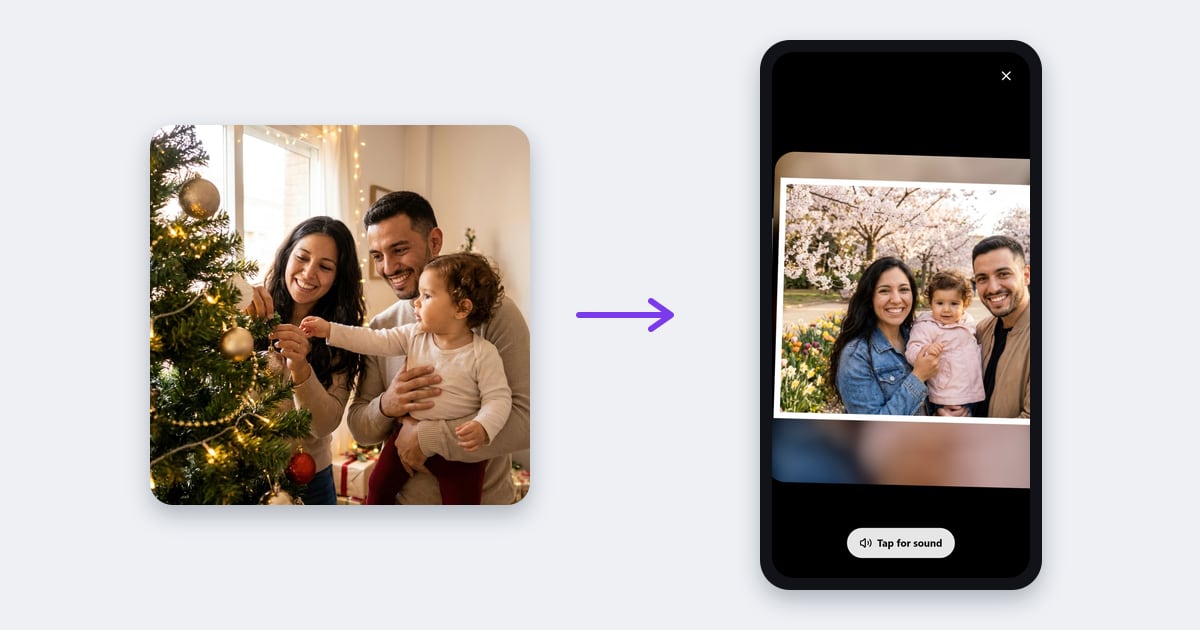
A printed photo shows one moment. With Video QR, in the Badge Designer or the Template Studio, it can play the whole memory: a first dance, a baby's first steps, a birthday message from grandma. Upload a short video, print your design, and anyone with a phone can watch it. Nothing to install.
In testing (beta). Video QR and Live Photo are new, and we're still improving them. Try them, and tell us what works and what doesn't: tap Send feedback in the QR tab, or write to us in the chat on our website. Our team reads every message.
What's new (November 2026)
- New videos every month. From 1 December 2026, Business Plus includes 10 new videos each month and Business Pro 25 (until then, 25 and 50). Every video you make plays for 5 years, with no subscription needed, so you never have to delete one to make room.
- Video credits. Need more videos, or on the Creator or Business plan? Buy video credits, paid once: 5 videos for $2.99, 25 for $9.99 or 100 for $29.99. One credit makes one video, and credits never expire. For paid subscribers.
- Smaller videos, automatically. The Designer now makes your video smaller before it uploads, so even a big phone video uploads quickly and starts fast for the person scanning it.
- Your own soundtrack. Add one of our own music tracks, with no copyright worries.
- In the Template Studio too. The same video tools are in Edit Badge.
- Try Video QR: one test video that plays for 3 days. On the Free plan, try every tool with it: Add QR, Live Photo, music and Download QR (see below).
- Creator and Business subscribers add videos with video credits, and can try the 7-day Business Pro trial, which includes 5 videos. Those 5 pause when the trial ends, unless you then choose Business Plus or Business Pro (see below).
Two ways to open the video
| QR code | Live Photo | |
|---|---|---|
| What's printed | A QR code on your design | Nothing extra: the photo itself is the trigger |
| How people open it | Point the phone camera at the QR code and tap the link | Open the link once (from a QR code on the back, a gift card or a message), tap Open camera and point the phone at the photo |
| What they see | The video, full screen | The video playing on top of the print, in its shape, moving with it |
| Best for | Event badges, business cards, anything people scan in passing | Photo magnets and gifts where the front should stay clean |
Both use the same video and the same link, so you can combine them: a Live Photo on the front and a small QR code on the back of the magnet or on the gift card.
How to add a video to your design
- Finish your design, then open the QR tab: in the Badge Designer, or in the Template Studio (tap a badge on your sheet to open Edit Badge). Both have the same video tools.
- Under Play a video from the print, tap Choose a video: MP4, MOV (iPhone videos) or WebM, up to 60 seconds. The Designer makes it smaller (a 720p MP4) before it uploads, so even a long phone recording uploads in seconds. If your browser can't do that, the video must be under 100 MB.
- When it has uploaded, the video appears under Your videos, with these choices:
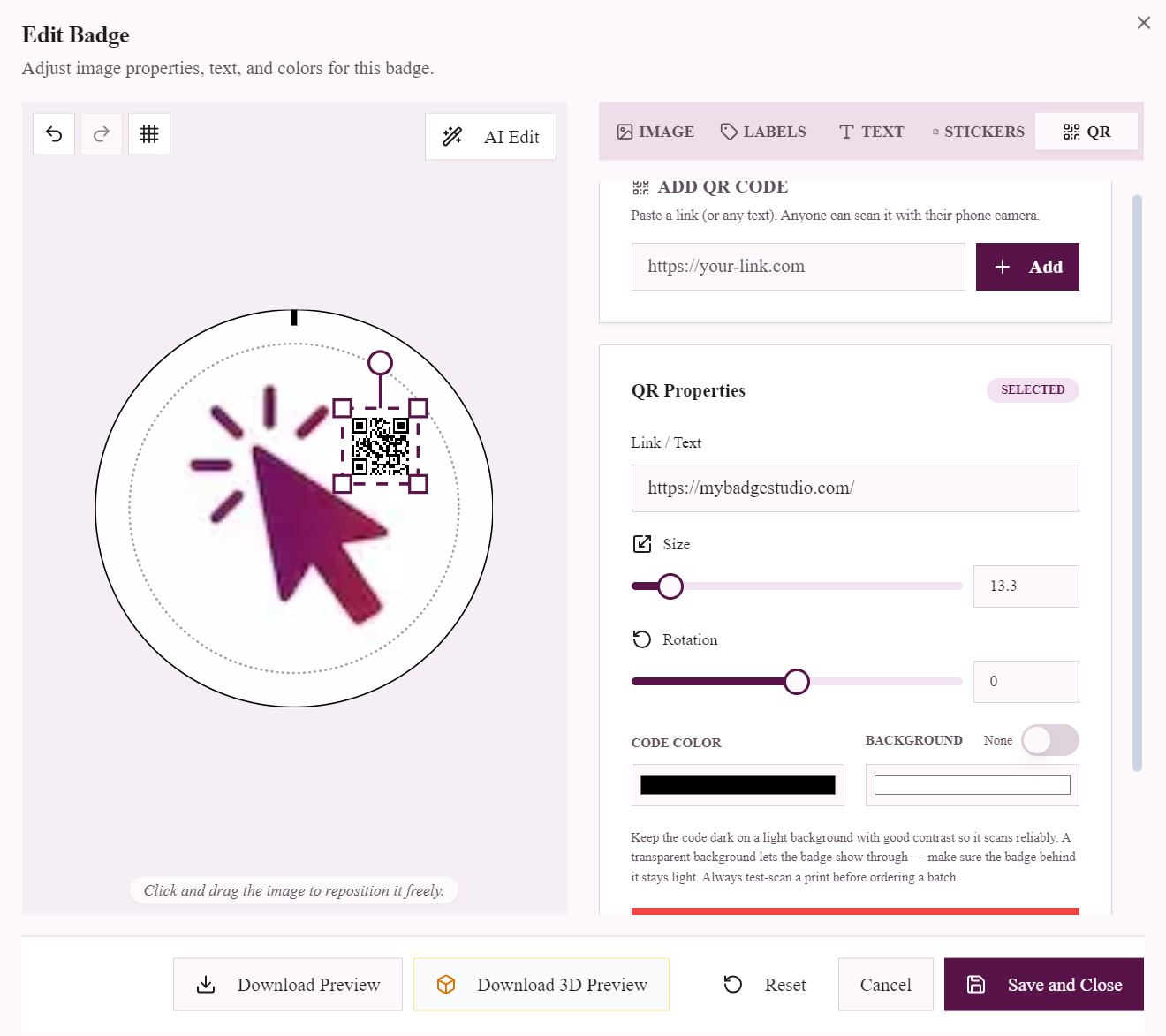
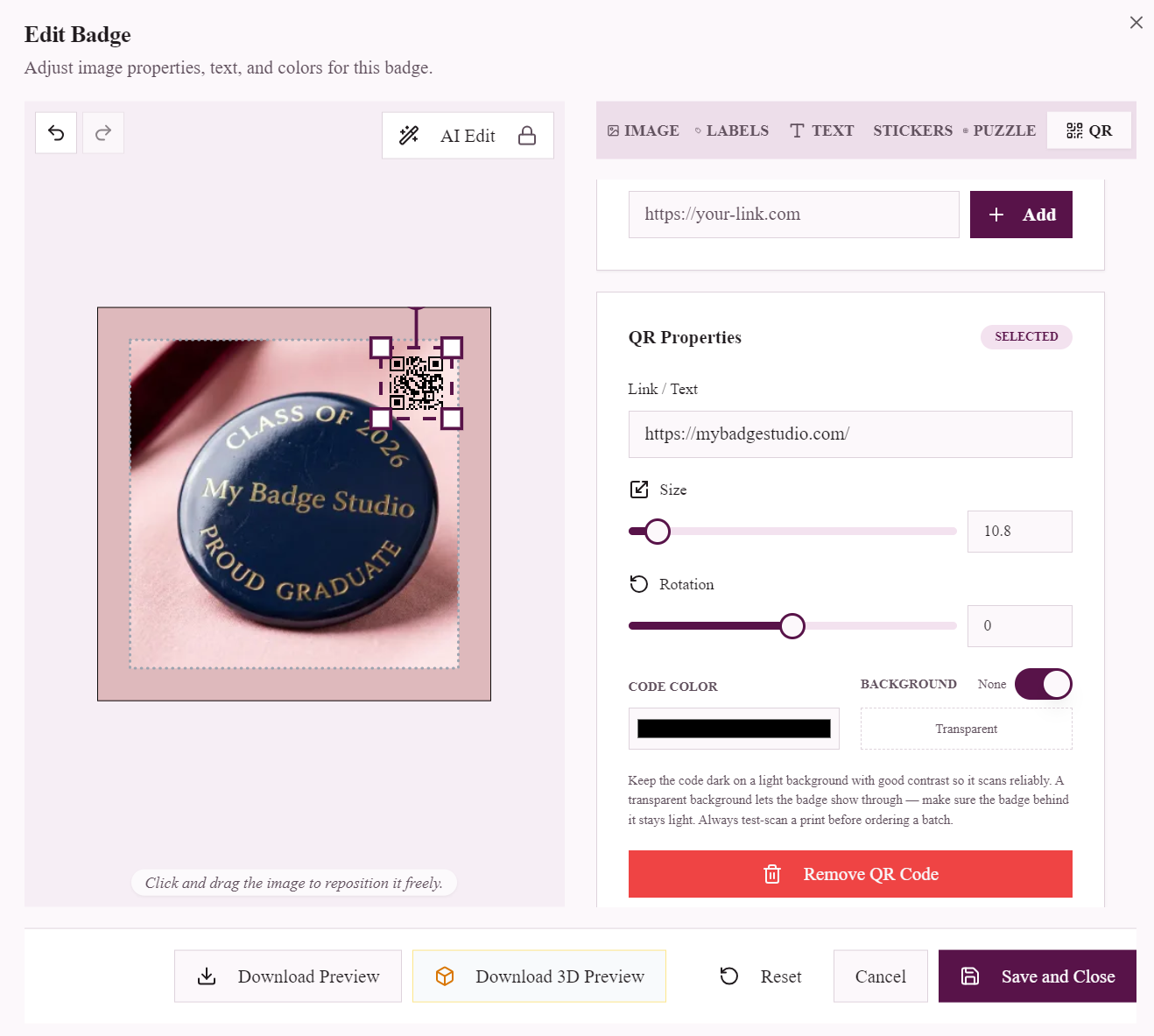
- Add QR puts a QR code that plays the video on your design. Move and resize it like any other layer.
- Live Photo teaches the phone what your design looks like. It takes a few seconds, and nothing is added to the front.
- Copy link (the link icon) gives you the video's link, to send on WhatsApp or by email.
- Download QR gives you the QR code on its own: a sharp PNG (with "Scan to watch the video" and the link written out under it, or the bare code) or an SVG for print shops and design programs. Or choose Message card for a printable thank-you card to put in the parcel: your heading (it starts as "Thank you for your order!"), an optional short note, the QR code with its link written out under it, and three simple steps to watch the video. For a Live Photo the steps explain how to point the phone at the print. A6 or 4 × 6 in, as a PDF or PNG.
- Test it before you print the batch. Print one, scan it with your phone, and check the video plays.
What the person scanning it sees
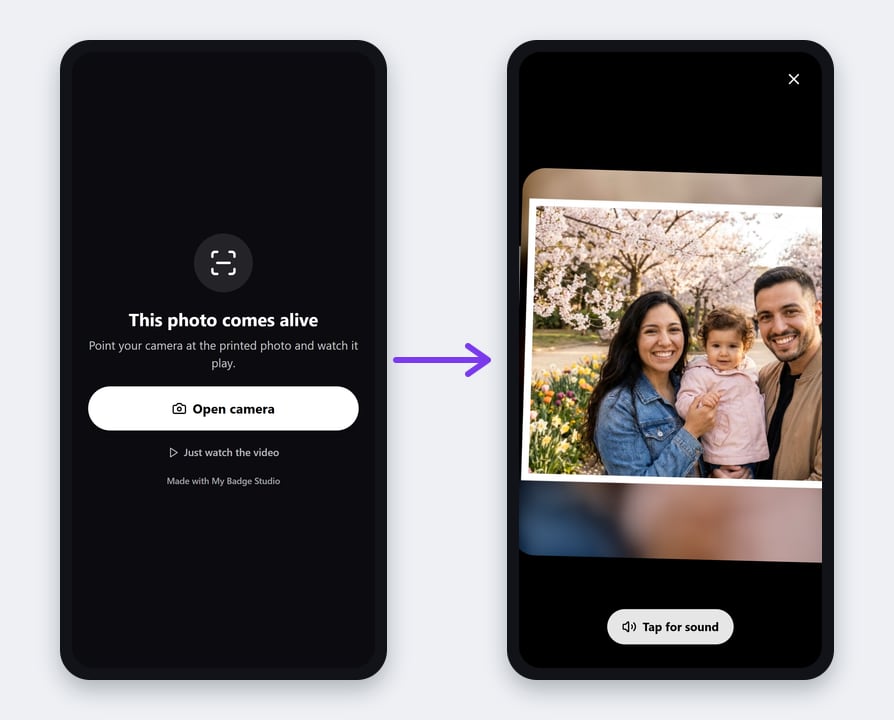
- With a QR code, the video opens full screen and starts playing straight away. It starts without sound, because phones only allow that, and a big Tap for sound button turns the sound on.
- With a Live Photo, the page says This photo comes alive. They tap Open camera, allow the camera once, and point the phone at the print. Within a few seconds the video appears on top of the photo, in the photo's shape, and follows it as the phone moves. Just watch the video plays it without the camera.
- It all works in the phone's browser, on iPhone and Android. No app and no account.
Tips for a Live Photo that's found every time
- Make the Live Photo last. The phone looks for this exact picture, so finish the design first. Changed it afterwards? Tap Update Live Photo before you print.
- Photos with detail work best: faces, scenery, patterns. A design that's mostly one flat colour or a few words is hard for a camera to recognise, so give those a QR code.
- One design per video. Printing the same design many times? One Live Photo covers them all. Twelve different photos need twelve videos, one per design.
- Watch for glare. A glossy finish or a domed badge under a bright light can hide the photo. Tilting the phone a little fixes it.
- Hold the phone 15–30 cm away, so the whole print is in view.
Ideas
- Wedding favour magnets that play the first dance or a thank-you from the couple.
- Baby milestone magnets with first steps, a first laugh or a first word.
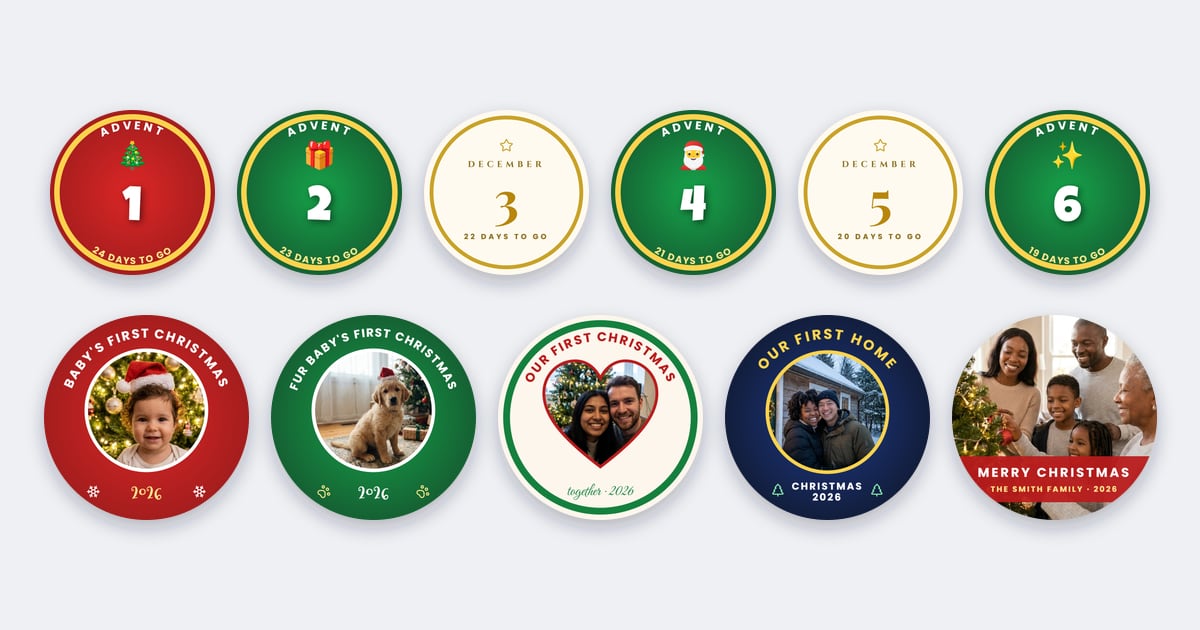
- Christmas photo ornaments and calendars with a family video. See Christmas countdown badges and photo ornaments and 2027 photo calendar magnets.
- Memorial badges that keep a voice and a favourite moment.
- Graduation badges with a message from the class or the teacher.
- For your business: product magnets with a how-to video, event badges with a welcome video, or merch badges that play a music video.
Want a QR code that opens a website, a menu or a social profile instead? See the QR code badges guide.
Your videos, your plan and video credits
- Business Plus: 10 new videos each month. Business Pro: 25 new videos each month. This applies from 1 December 2026 (until then, 25 and 50). The count starts again on the 1st of every month, and unused videos don't carry over. Creator and Business include no videos a month: you add videos with video credits.
- Every video plays for 5 years from the day you make it, with no subscription needed. Videos from earlier months keep working on your prints, so you never have to delete one to add another.
- How many plays: up to 100 in a video's first month, then up to 50 every month. Each month counts from the day the video was made (a video made on the 15th starts a new month on the 15th), and unused plays don't carry over. Big family celebration or event? Contact us and we'll raise it.
- Video credits: packs of 5 videos ($2.99), 25 ($9.99) or 100 ($29.99), paid once. One credit makes one video, and credits never expire. They're used after your plan's videos for the month. They're for paid subscribers (Creator, Business, Business Plus and Business Pro), not the Free plan. You can buy them while your subscription is continuing (not cancelled or paused), and use them while you have a paid subscription. If your plan ends, unused credits stay on your account and work again when you subscribe again. Buy them under Your videos in the QR tab, or on the pricing page.
- Free trial: the free 7-day Business Pro trial includes 5 videos to try it with. Your own plan and its billing don't change during the trial. When it ends, its videos pause, and prints that use them show "This video isn't available". Choose Business Plus or Business Pro within 30 days and they play again; otherwise they're deleted 30 days after the trial. Videos you make with your own video credits during the trial are normal videos and don't pause.
- Test video on the Free plan: one per account, with every Video QR tool. Sign in, open the QR tab and choose a video. It plays for 3 days from when you make it; then prints that use it show "This video isn't available", and a day later it's deleted. Choose Business Plus or Business Pro before then and it keeps playing as a normal video, without using up one of the month's new videos.
- Your videos lists every video, how many of the month's new videos you've used and how many video credits you have left. If a video has used its plays for the month, it says so there, with the date it plays again (when its next month starts).
Deleting videos, plan changes and your account
- Deleting a video stops it on every print that uses it, including prints you've given away or sold, which then show "This video isn't available". It doesn't give back one of the month's new videos or a video credit, so only delete videos nobody needs any more.
- If your plan ends, your videos keep playing for their 5 years whether or not you subscribe. To add new ones, subscribe again. Unused video credits wait for you.
- Longer than 5 years? Each video plays for 5 years from the day you make it. Want one to play longer? Contact us and we'll extend it.
- Videos made in the free trial are the exception: they pause when the trial ends, and are deleted 30 days later unless you choose Business Plus or Business Pro.
- Your test video (Free plan) stops playing 3 days after you make it, and is deleted a day later unless you choose Business Plus or Business Pro. Deleting it yourself doesn't give you another test video.
- If you delete your account, your videos are deleted with it after the 30-day grace period, and from then on they stop playing on every print. You'll see a reminder before you confirm.
Privacy
- Anyone with the link or the code can watch the video. The link is random, can't be guessed, and the video page is kept out of Google. Only upload videos you have the right to share.
- Music: our tracks are made for My Badge Studio and are free to use with your videos. If your own video already has music in it, make sure you're allowed to share it.
It's in testing: tell us what you think
Video QR and Live Photo are new. We test them on many phones, but yours may find something we missed: a photo that's hard to recognise, a video that won't upload, or an idea for something new. Tap Send feedback in the QR tab, or write to us in the chat on our website. Every message reaches our team, and it helps us make the feature better for everyone.
Which plans include Video QR?
Video QR codes and Live Photos come with Business Plus (10 new videos a month) and Business Pro (25 a month). On Creator and Business, you add videos with video credits, and every subscriber can buy credits for more. On the Free plan, you can try them with one test video that plays for 3 days. The people watching need nothing: no account, no plan, no app. Compare plans on the pricing page, and see the Badge Designer guide for everything else the Designer can do.
Frequently Asked Questions
Can you put a video in a QR code?
A QR code can't hold a video itself, only a link. Video QR stores your video and puts its link in the QR code, so scanning the code plays the video in the phone's browser.
What is a Live Photo?
A print with nothing extra on the front. The viewer opens the video's link once, taps Open camera and points the phone at the photo, and the video plays on top of the print, moving with it.
Does the viewer need an app?
No. The video plays in the phone's browser on iPhone and Android. A Live Photo asks once for permission to use the camera.
Is Video QR finished?
Not quite: it's in testing (beta). It already works on iPhone and Android, and we're improving it with your feedback. Tap Send feedback in the QR tab, or write to us in the chat on our website.
How long can the video be?
Up to 60 seconds, as an MP4, MOV (the format iPhones record) or WebM file. The Designer makes it smaller before it uploads, so big phone videos are fine. If your browser can't do that, the file must be under 100 MB.
How many times can a video be played, and for how long?
Each video plays for 5 years from the day you make it. In its first month it can be played up to 100 times. After that, up to 50 times every month. Each month counts from the day the video was made: a video made on the 15th starts a new month on the 15th. Unused plays don't carry over. If a month's plays are used up, the video takes a short break and plays again when its next month starts. Want it to play longer or more often, for a big family celebration or an event? Contact us and we'll extend it.
Can I add a video in the Template Studio?
Yes. Tap a badge on your sheet to open Edit Badge, then the QR tab: the video tools are the same as in the Badge Designer, Live Photo and music included. The QR code goes on that badge, and you can move and resize it like any other.
Can I add music to the video?
Yes. Under each video, Add music lets you pick one of our own tracks, such as a lullaby, a love song or a Christmas track with sleigh bells, and listen first. It plays when the viewer taps for sound, with or without the video's own sound.
Can I download the QR code, or print it on a thank-you card?
Yes. Under each video, Download QR gives you the code on its own (PNG or SVG) or a printable thank-you card with your message, the QR code and simple steps to watch the video (A6 or 4 × 6 in, PDF or PNG). Handy for putting in the parcel with an order.
Is it safe to scan the QR code?
Yes. Every Video QR code opens the same website, mybadgestudio.com/v/…, and can't be pointed anywhere else. The phone shows that address before it opens anything, and you can print the link under the code so people can check it first. The page only plays the video: nothing to install or download, no sign-in, and it never asks for passwords, payment details or personal information. A Live Photo turns the camera on only when the viewer taps Open camera, and the phone asks first. Each video page also has a Report this video link, and we take down anything that breaks the rules.
Who can watch the video?
Anyone who has the link or scans the code. The link is random and the page is kept out of Google. You can delete the video at any time, and the printed code then stops playing it.
Which plans include Video QR?
Business Plus includes 10 new videos a month and Business Pro 25 (from 1 December 2026; until then 25 and 50). On Creator and Business you add videos with video credits, and any paid subscriber can buy credits for more: packs of 5, 25 or 100 videos that never expire. On the Free plan you can try it with one test video that plays for 3 days, and the 7-day Business Pro trial for Creator and Business subscribers includes 5 videos, which pause when the trial ends. The people watching don't need an account or a plan.
Can I use Video QR on the Creator or Business plan?
Yes, with video credits. Creator and Business don't include videos each month, so you buy credits: one credit makes one video, with everything Video QR does (Add QR, Live Photo, music and Download QR). Packs of 5, 25 or 100 videos, paid once; the price in your currency is on the pricing page. Credits never expire, and you can use them while you have a paid subscription.
Can I try Video QR on the Free plan?
Yes, with one test video per account. Sign in, open the QR tab in the Badge Designer or the Template Studio, and choose a video: you can try everything with it, including Add QR, Live Photo, music and Download QR. To print badges with it on the Free plan, use the Template Studio (Edit Badge, QR tab): downloading a design from the Badge Designer needs its 7-day pass or a plan. It plays for 3 days from when you make it. After that, prints that use it show "This video isn't available", and a day later it's deleted, unless you choose Business Plus or Business Pro first: then it keeps playing as a normal video, without using up one of the month's new videos.
What happens to videos I made in the free trial?
They pause when the 7-day trial ends, and prints that use them show "This video isn't available". Choose Business Plus or Business Pro within 30 days and they play again, as normal videos. Otherwise they're deleted 30 days after the trial. Your own plan and its billing never change during the trial.
What happens when I've used a month's new videos?
Your videos keep playing. You can add more from the 1st of next month, or straight away with video credits, which never expire.
Do I have to delete old videos to add new ones?
No. Every video plays for 5 years, with no subscription needed, and each month brings new ones. Deleting a video stops it on every print that uses it, and doesn't give one back.
What are video credits?
Extra videos for Video QR and Live Photo, paid once, in packs of 5, 25 or 100 (the price in your currency is on the pricing page). One credit makes one video. They never expire and are used after your plan's videos for the month. For paid subscribers (Creator, Business, Business Plus and Business Pro), not the Free plan. If your plan ends, unused credits stay on your account and work again when you subscribe again. They replace the Video pack: unused Video pack videos became credits, one for one.
What happens to my videos if my plan ends?
They keep playing for 5 years from the day you made each one, whether or not you subscribe. To add new videos, subscribe again; unused video credits stay on your account. Videos made in the free trial are the exception: they pause when the trial ends.